
Batch Actions - Proposals
When working with a found set of proposals, you can select multiple records and apply a batch action to all of them at once — no need to open and edit each proposal individually.
Selecting Proposals
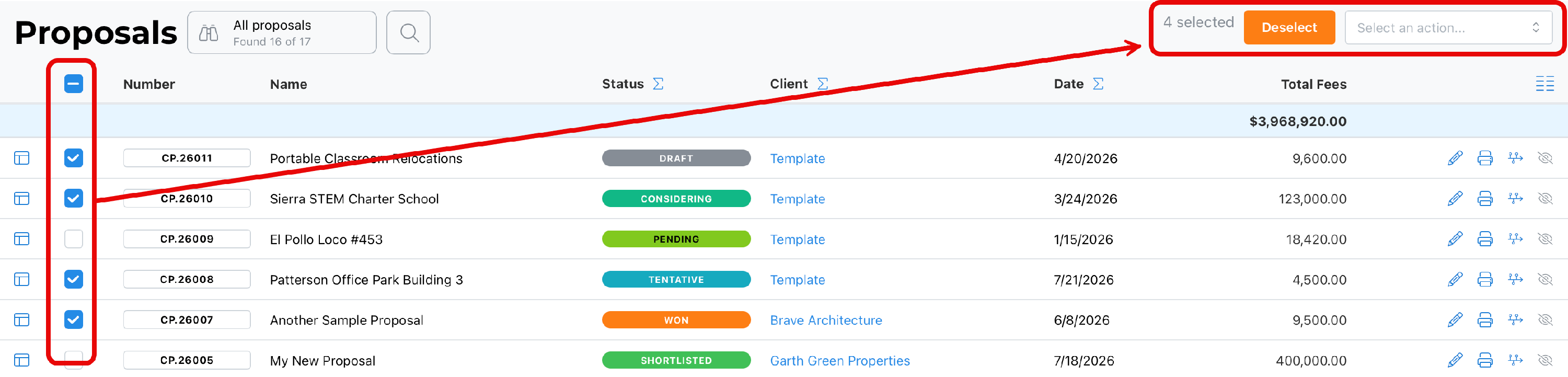
Select proposals one at a time using the checkboxes, or select all records in the found set. A live count of selected records appears in the top right, along with a Deselect button to clear your selection at any time. Once at least one proposal is selected, the Select an action... dropdown reveals the batch actions available for this module.
~ Available Actions ~
These actions may be updated from time to time. Hopefully, we will remember to keep this document current.
Hide Records
Removes the selected proposals from the current found set, without archiving, deactivating, or otherwise changing the underlying records. This is useful for narrowing what you're looking at without permanently altering anything.
Apply Tags
Presents a list of tags to choose from, and applies the selected tag(s) to every proposal in the current selection.
Remove Tags
The reverse of Apply Tags — presents a list of tags and removes the selected tag(s) from every proposal in the current selection.
Change Status
Changes the status of all selected proposals to whichever status you choose from the list presented.
Sync Billing Rates
Syncs the billing rates on the selected proposals with the current values of their linked master billing rates. Only rates that are linked to a master rate are updated — custom, unlinked rates are unaffected. See Setting Up Master Billing Rate Roles for more on linked vs. custom rates.
Best Practice
Use Hide Records to work through a large found set of proposals without losing your place. Use Sync Billing Rates when your master rates have changed and you want a specific set of proposals to reflect the update, rather than waiting for it to happen automatically — since, as with projects, changes to master rates don't cascade to existing proposals on their own.
Summary
Select proposals individually or all at once, then choose an action from the dropdown that appears once records are selected. Use Deselect at any time to clear your current selection.