
Batch Actions - Expenses
When working with a found set of expenses, you can select multiple records and apply a batch action to all of them at once — no need to open and edit each expense individually.
Selecting Expenses
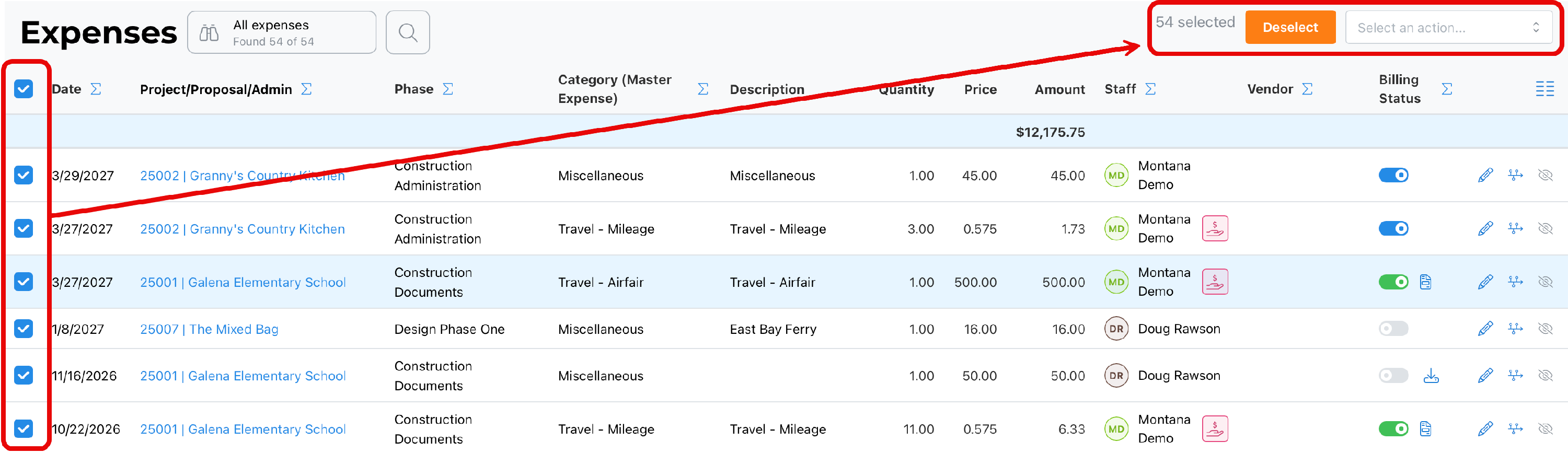
Select expenses one at a time using the checkboxes, or select all records in the found set. A live count of selected records appears in the top right, along with a Deselect button to clear your selection at any time. Once at least one expense is selected, the Select an action... dropdown reveals the batch actions available for this module.
~ Available Actions ~
These actions may be updated from time to time. Hopefully, we will remember to keep this document current.
Hide Records
Removes the selected expenses from the current found set, without archiving, deleting, or otherwise changing the underlying records. This is useful for narrowing what you're looking at without permanently altering anything.
Change Billing Status
Changes the billing status of the selected expenses. This only applies to expenses that have not already been invoiced — invoiced expenses are not affected by this action.
Change Reimbursable Flag
Toggles the selected expenses between reimbursable and non-reimbursable. This only applies if the staff member has not already been paid for the expense.
Change Staff Payment Flag
Toggles the selected expenses between Paid and To Be Paid.
Best Practice
Because Change Billing Status and Change Reimbursable Flag are both protected once an expense has been invoiced or paid out, these actions are safe to run in batch during regular cleanup — the system won't let you accidentally alter expenses that have already moved past that point.
Summary
Select expenses individually or all at once, then choose an action from the dropdown that appears once records are selected. Use Deselect at any time to clear your current selection.