
Connecting QuickBooks Online
This article covers how to connect BaseBuilders to QuickBooks Online and complete the account mapping needed for a smooth integration.
Connecting to QuickBooks Online
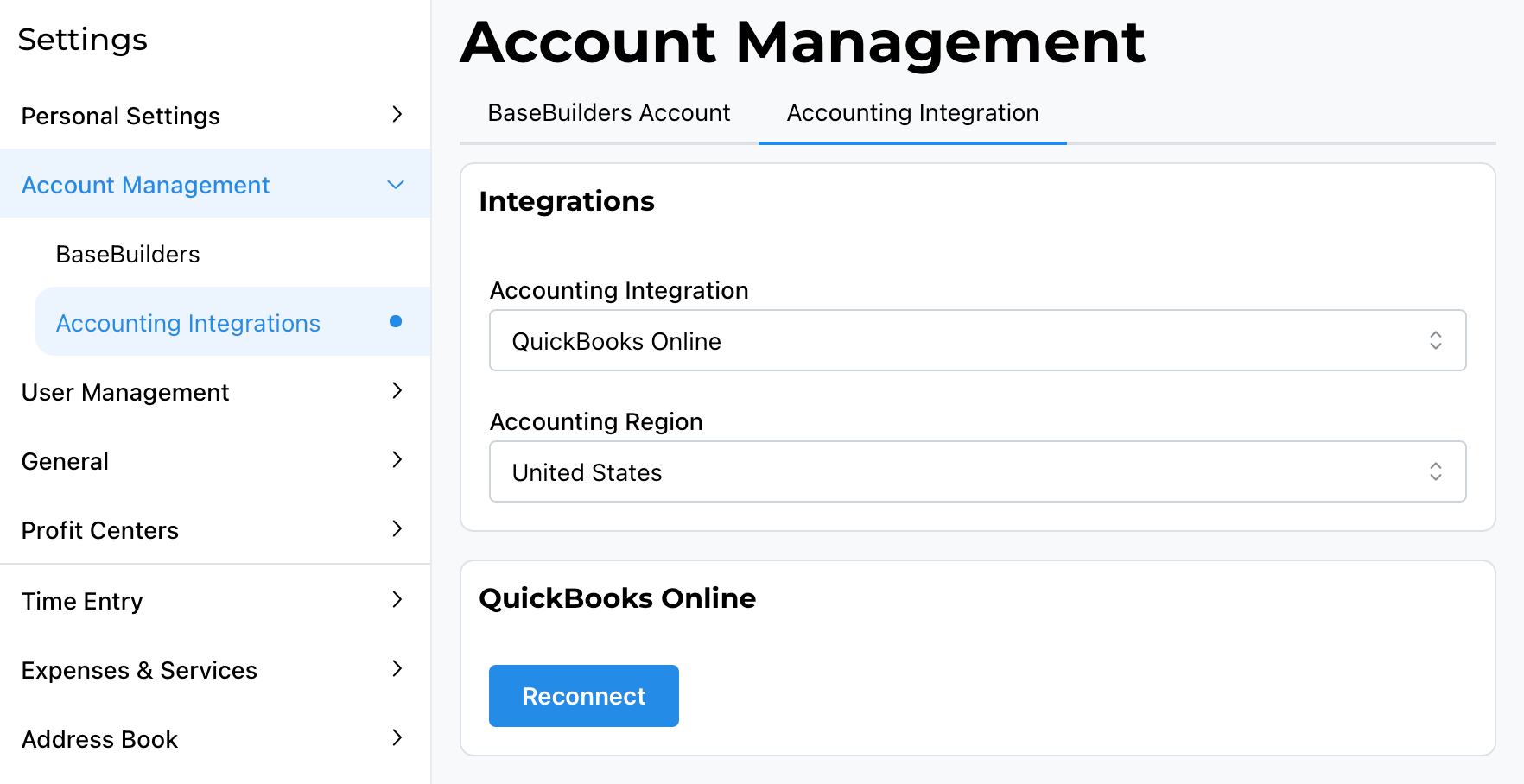
- Go to Settings > Account Management > Accounting Integration.
- Select QuickBooks Online, then select Save.
- Select Connect, then log in to your QuickBooks Online account.
- When prompted, confirm that you want to share information with BaseBuilders.
Once connected, the Connect button will read Reconnect. You shouldn't need to use it under normal circumstances, but it's available if your account ever
becomes disconnected from QuickBooks.
Configuring the Integration
After connecting, a QuickBooks option appears under Settings. Selecting it may show red indicators marking configuration that still needs to be completed before the integration is ready to use.
General Tab: Choosing What to Push
Decide which transaction types you want BaseBuilders to push into QuickBooks: Expenses, Invoices, Income, Payouts, and Pay Requests. You don't have to enable all of them — only integrate the transaction types that fit how you actually use QuickBooks.
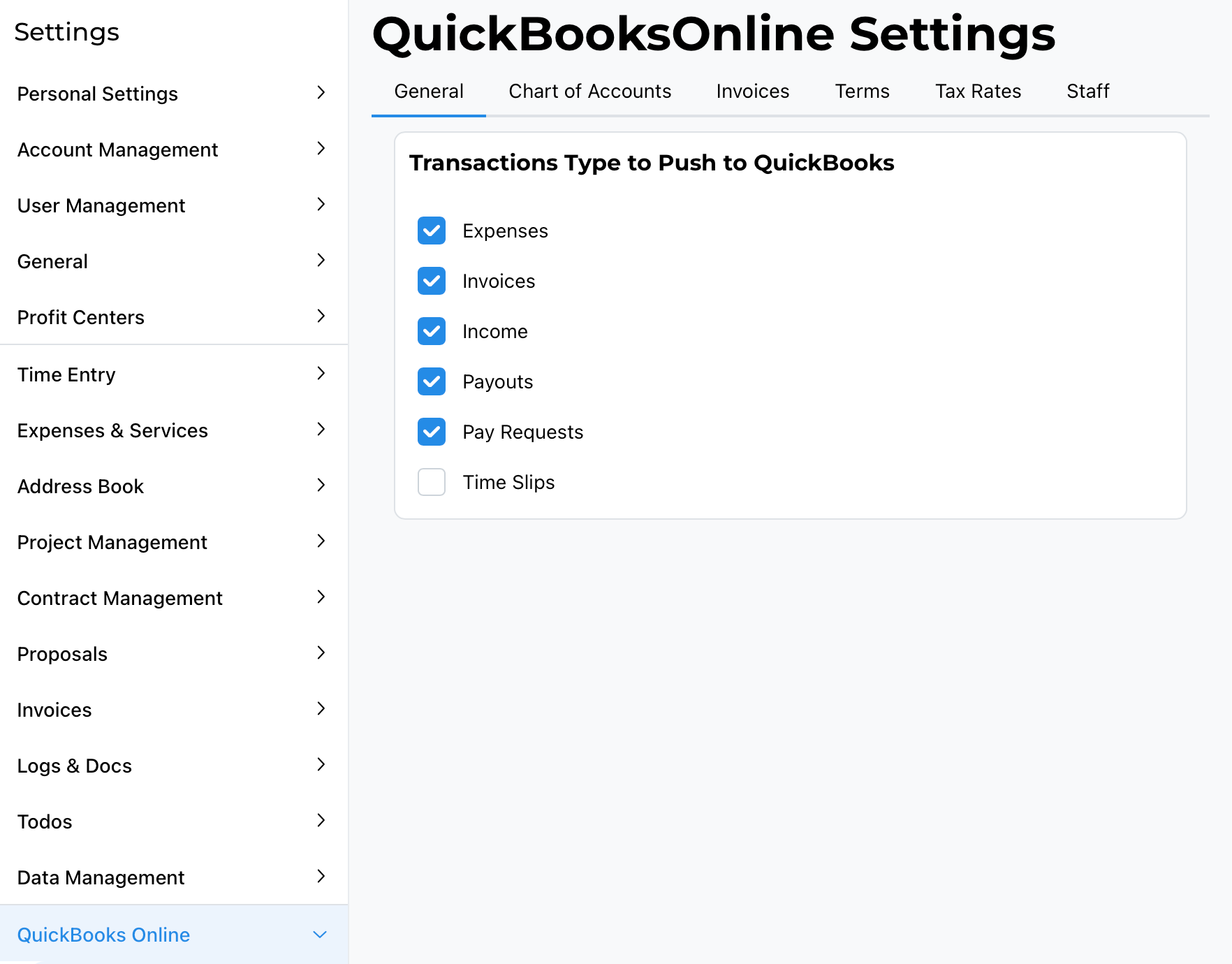
Chart of Accounts
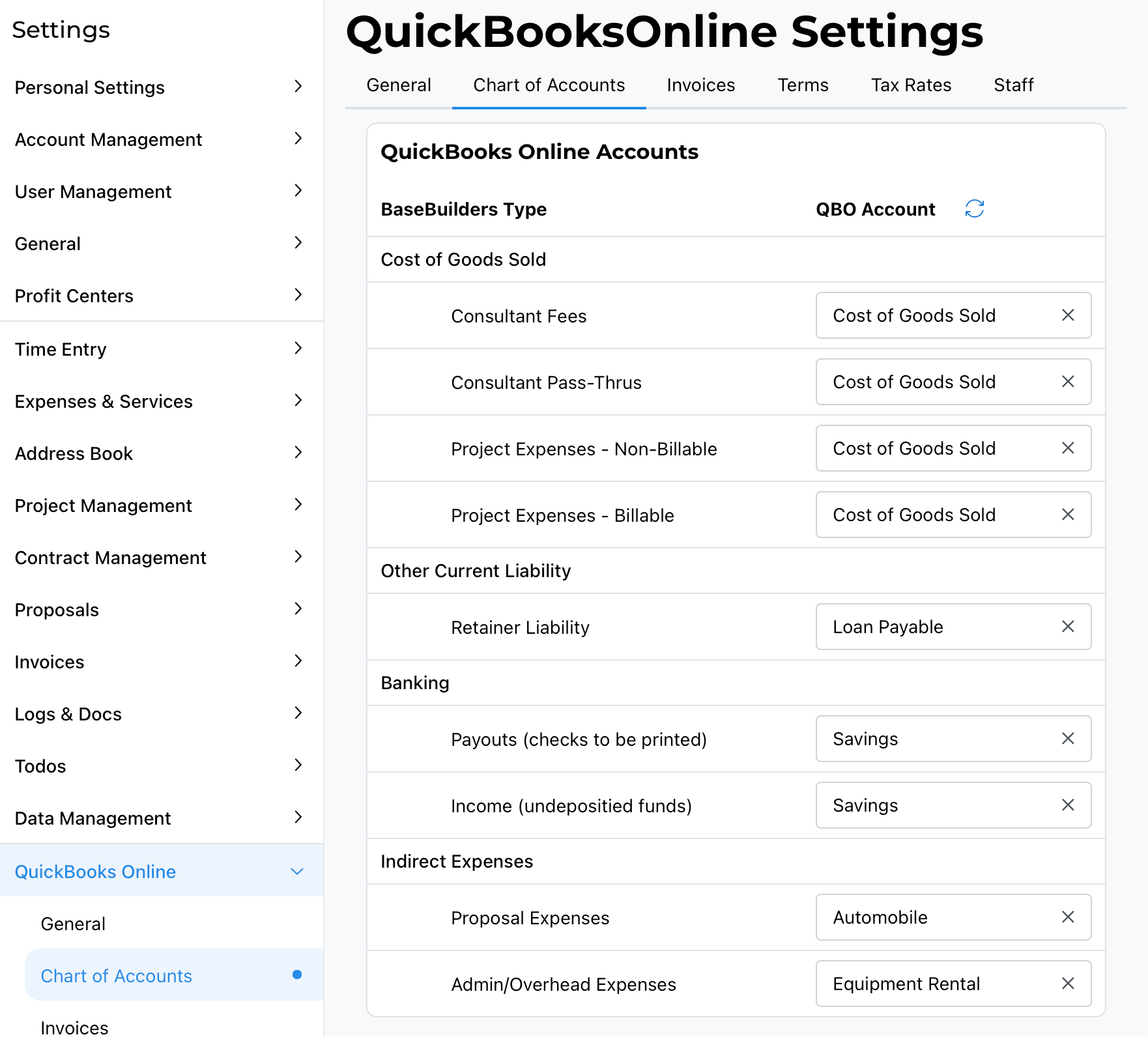
For each cost category, select the corresponding QuickBooks account:
- Cost of Goods Sold — project fees and direct project expenses.
- Liabilities — for example, a retainer liability account, if you use retainers.
- Banking accounts.
- Indirect Expenses — your overhead categories, such as office expense.
Use the search field to quickly find an account rather than scrolling through a long list.
Even if you don't currently use a category (retainers, for example), it's worth mapping it now rather than leaving it unset. Setting everything up up front means that if you start using that feature down the road, nothing will unexpectedly fail to push because a mapping was missed.
Invoice Line Items
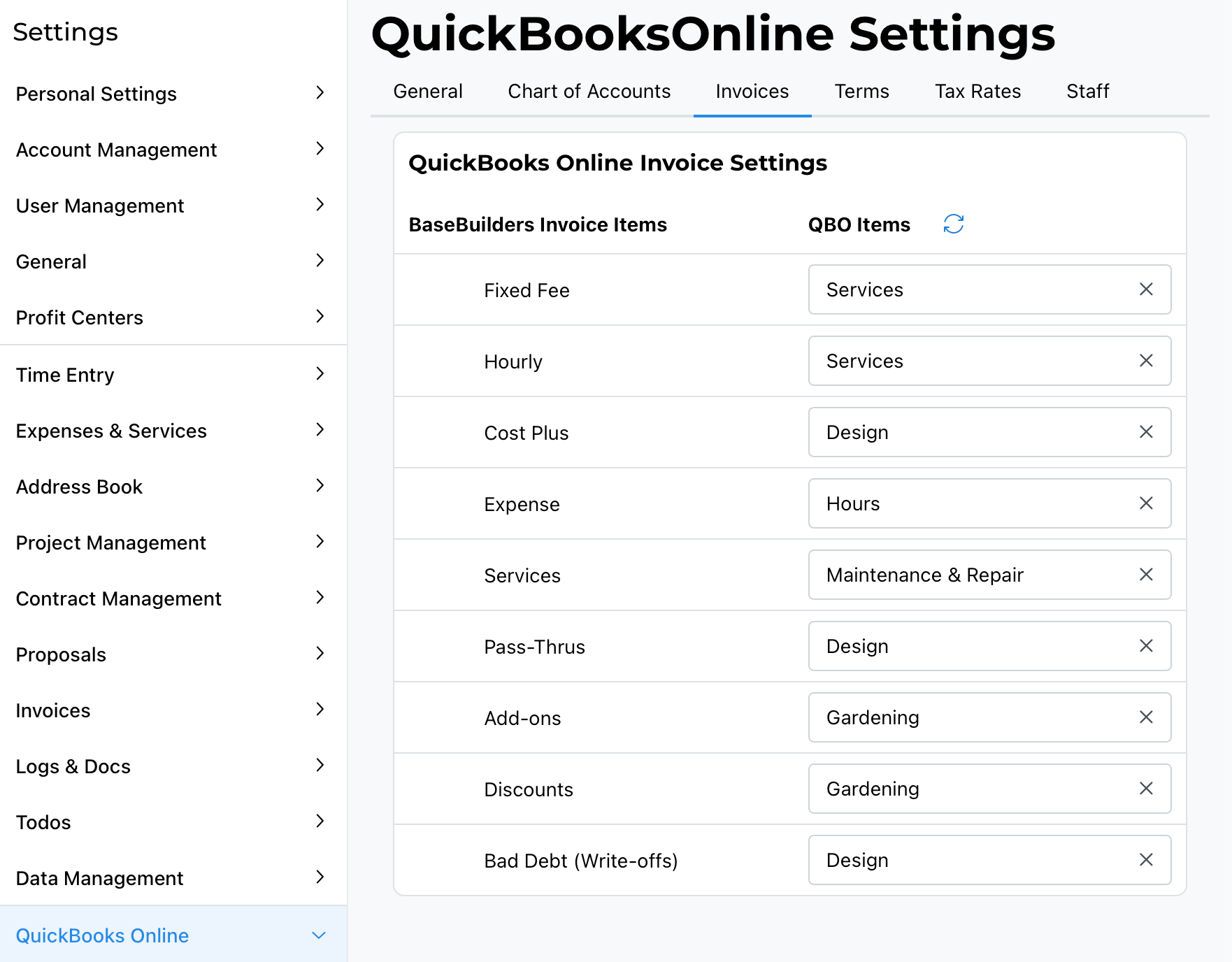
Separately, you'll map the line item types that appear on invoices pushed to QuickBooks. Each of these ties to a QuickBooks account, which determines how that revenue is recognized:
- Fees/Billings — your core design fees. These can all map to one general income account (such as "Consulting Income"), or you can split fixed fee, hourly, and cost-plus into separate QuickBooks income accounts if you want that level of detail. At tax time, this distinction typically doesn't matter — it's still design income either way.
- Expenses and Services — billed expenses and services.
- Pass-Throughs — consultant costs billed to the client.
- Add-Ons — anything billed to the client that isn't otherwise tracked in the system, such as a late fee.
- Discounts
- Bad Debt Write-Offs
Each of these can map to the same QuickBooks account or be split into separate accounts, depending on how granular you want your QuickBooks reporting to be.
Terms
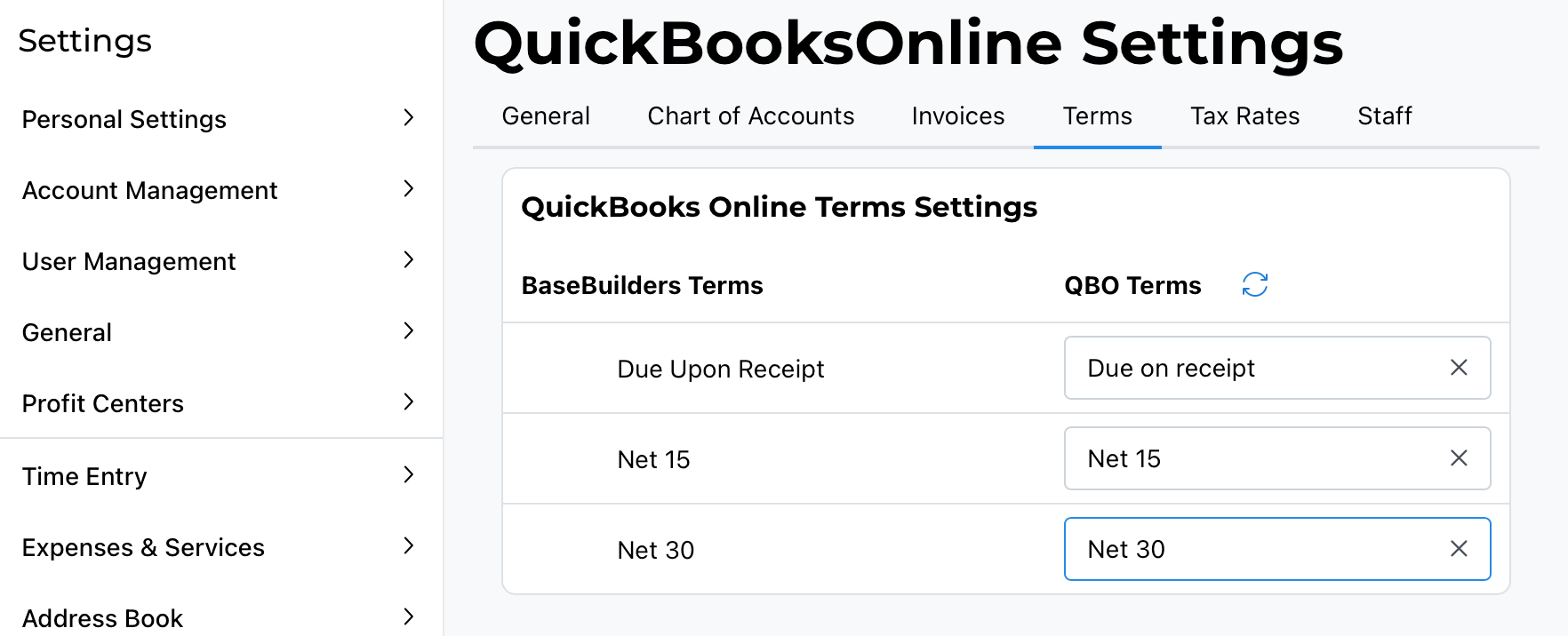
Match each payment term configured in BaseBuilders (see Tax Rates, Terms, and Billing Options) to the corresponding term in QuickBooks — for example, mapping "Due on Receipt" to "Due on Receipt" and "Net 30" to "Net 30." If a term is mismatched (for example, Net 30 mapped to Net 60), invoices pushed with that term will use the mismatched QuickBooks term instead. This can be corrected at any time by selecting a different mapping.
If you have unused terms in your BaseBuilders setup, consider cleaning those up under Contract Management settings rather than mapping terms you don't actually use.
Tax Rates
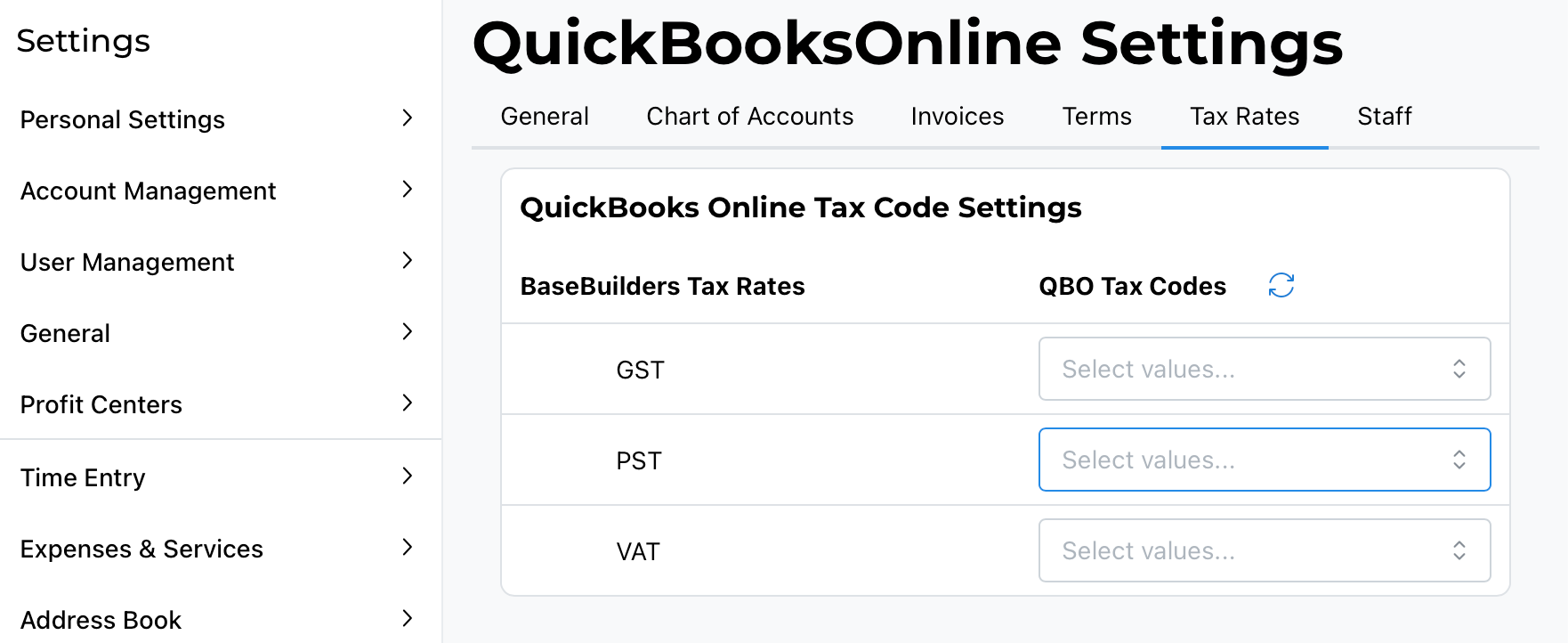
If you charge sales tax, match each tax rate configured in BaseBuilders to its corresponding tax code in QuickBooks.
Best Practice
Complete every mapping category during initial setup, even for categories you don't currently use (like retainers), rather than leaving them blank. This prevents a situation months later where a transaction fails to push simply because a mapping was never configured. Terms and tax mappings can be corrected at any time, so don't worry about getting every selection perfect on the first pass.
Summary
Connect QuickBooks Online under Settings > Account Management > Accounting Integration by selecting QuickBooks Online, saving, and connecting your account. Then complete configuration under the QuickBooks settings tab: choose which transaction types to push (General tab), map your Chart of Accounts for cost of goods sold, liabilities, banking, and indirect expenses, map invoice line item types (fees, expenses/services, pass-throughs, add-ons, discounts, write-offs) to QuickBooks accounts, and match up your BaseBuilders terms and tax rates with their QuickBooks equivalents. Red indicators mark categories still needing configuration.