
Access Groups Explained
Users are assigned to an access group, which will control their permissions within the application. Click your name/avatar at the bottom of the main navigation panel to open settings.
Overview
- Access groups allow you to set permissions for multiple users at once, eliminating the need to configure access individually for each user
- Most users will need the same access permissions, but you can create one access group per user for granular control if needed
- Examples of common access groups: Accounting, Principals, Project Managers, Production, Interns
Managing Access Groups
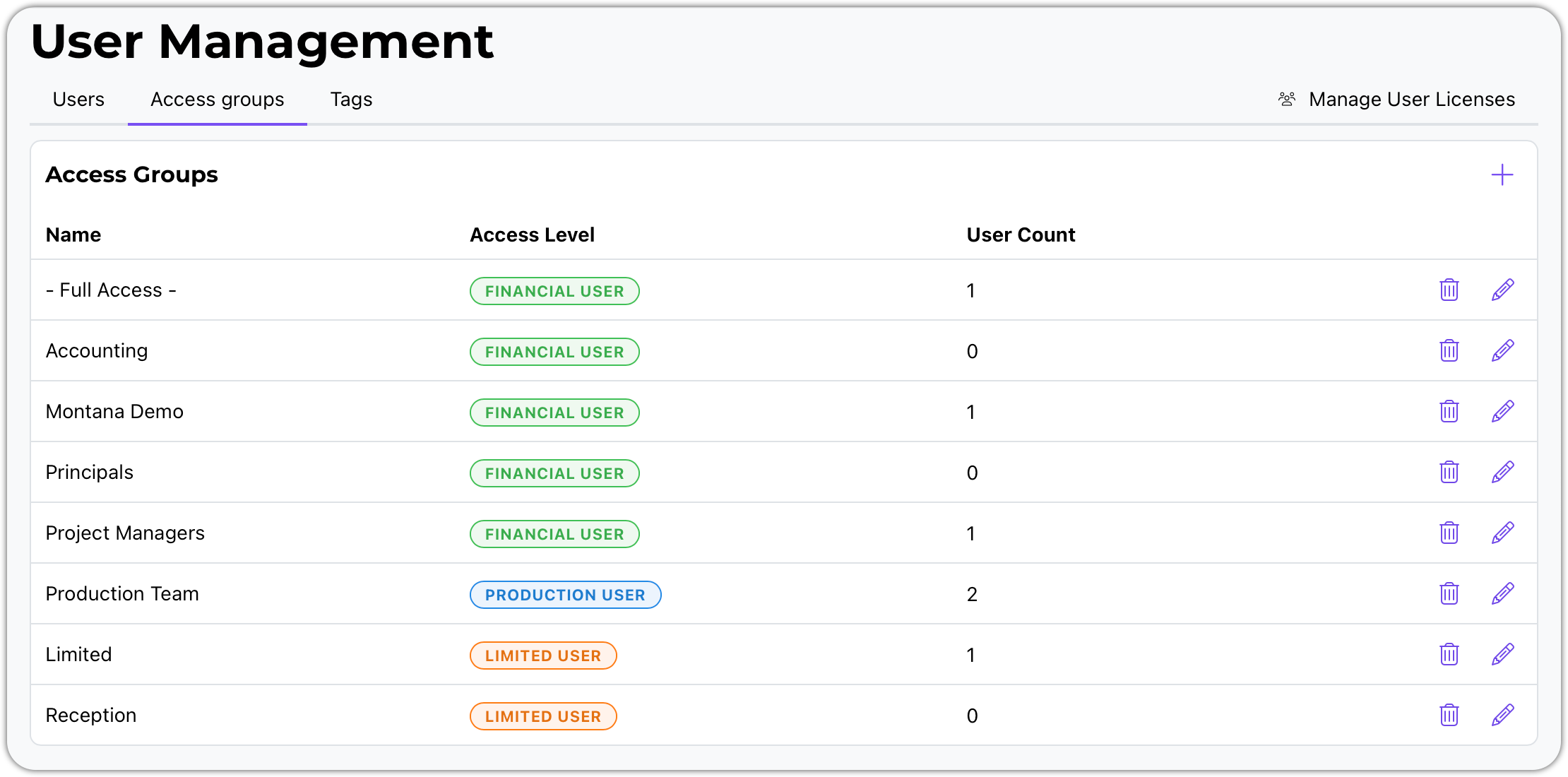
* Use the plus (+) sign to create a new access group * Use the delete button to remove an access group * Use the edit button to modify an existing access group
Access Group Types
When creating a new access group, you can choose from three types or levels:
- Limited User - minimal module access
- Production User - everything but financial data
- Financial User - the whole enchilada
The type you select determines which parts of the system you can grant them access to
Permissions by Module for All User Levels - Limited, Production, and Financial
Timesheets
- All users will have the ability to create and edit their own time slips
- Option: Can also delete their own time slips
- Can users view other users' time slips - Not available for limited users
- Options: read only | create and edit | create, edit, and delete.
In and Out Board
- Can they see everybody or just themselves
- Can they edit other users' status - Not available for limited users
Expenses
- All users will have the ability to create and edit their own expenses
- Option: can also delete their own expenses
- Allow users to view other users' expenses - Not available for limited users
- Options: read only | create and edit | create, edit, and delete.
Services
- All users will have the ability to create and edit their own service items
- Option: can also delete their own items
- Allow users to view other users' service items - Not available for limited users
- Options: read only | create and edit | create, edit, and delete
Todo List
- User's own or assigned todos
- Options: read only, create and edit, create, edit, and delete
- Allow users to view users' todos - Not available for limited users
- Options: read only | create and edit | create, edit, and delete
Scheduling and Resources
- User's own or assigned schedules
- Options: read only, create and edit, create, edit, and delete
- Allow users to view users' schedules - Not available for limited users
- Options: read only | create and edit | create, edit, and delete
Address Book
- View companies and contacts
- Options: read only | create and edit | create, edit, and delete
Projects
- General Project Data (does not include financial data) - Not available for limited users
- All Projects: read only | create and edit
- Only assigned Projects: read only | create and edit
- This is for Production Level Users
- Financial Project Data - Financial Users Only
- All projects: read only | create and edit | Create, edit, and delete
- Only assigned projects: read only | create and edit | Create, edit, and delete
Proposals
- Set permissions for proposal management
Invoices
- Can they approve draft invoices?
- Can they edit approved invoices?
Income
- Configure access to income tracking
Pay Requests
- Set permissions for payment request management
Payouts
- Configure payout management access
Reports
- Controls whether users can create and edit reports or only view reports
- You can save special reports in the system as either public or private
- Permission options:
- Create and edit reports
- Read only (cannot modify saved reports)
- No access (cannot run saved reports, but can still run quick reports)
Time Reports (time slips)
- WARNING: This module contains sensitive pay information
Accounting
- WARNING: Contains sensitive financial information
- Controls access to the accounting module
- Determines whether users can access settings for integrating with accounting software
Settings
- Purple-colored permissions control access to system settings
- Configure which users can modify system configuration
Admin Access
- Users must be designated as admin to update access groups
- Admin status is required for managing user permissions and access group configurations
- Admin users can modify users and access groups in the system
Naming and Customizing Access Groups
- You can give access groups any name you like
- You can modify the access groups that ship with the system
- You can create your own custom access groups
- Remember to save changes when editing - use Cancel if you don't want to save modifications
Assigning Users to Access Groups
- When working with users (covered in a separate video), you will assign them to access groups
- You can have multiple access groups for each user type:
- Financial users: Can be assigned to any of the five available financial access groups
- Production users: One access group available in this example
- Limited users: Two access groups available to choose from
License Types and Access Restrictions
Limited License Users
- Limited users have restricted access options
- Only a limited number of areas where you can grant them access
- When adding a limited license user, you can only pick from the two limited user access groups
Production License Users
- Production users have different access options than limited users
- Typically, all financial information is removed from production user access
Financial License Users
- Financial users have the most comprehensive access options
- Can be assigned to any of the five financial user access groups
Key Takeaways
- Access groups provide a powerful way to manage user permissions efficiently
- You can get very customized on what people can see and what they can do
- The system allows granular control - from broad access groups for common roles to individual access groups per user if needed
- If you have questions about access groups, please reach out for assistance