
How Found Sets, Hidden Records, and Reports Work Together
This article builds on Understanding Found Sets, Inverse Queries, and Hidden Records — here we go deeper into how these tools interact and why they matter when you're preparing something to report or print.
How a Query Actually Works
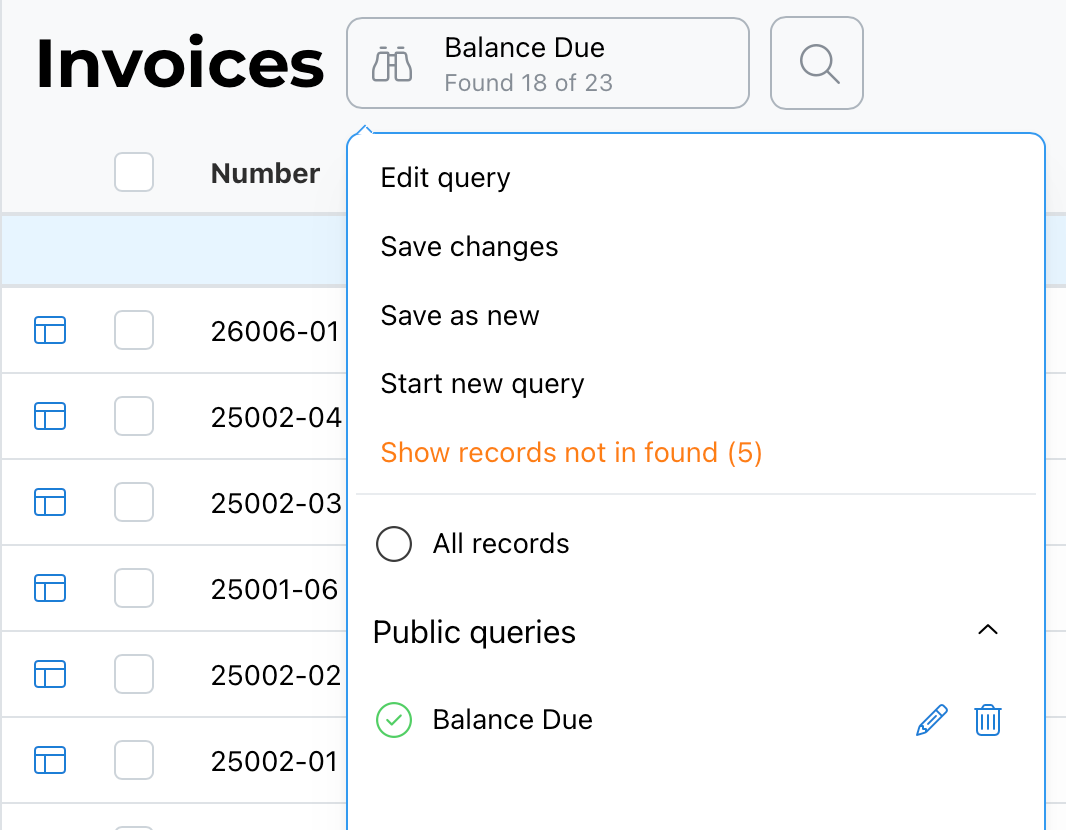
When you run a query, your criteria is sent to the database, which returns every record that matches. That returned list is your found set — for example, "Balance Due — Found 18 of 23" means 18 of your 23 total invoices matched the query criteria.
Viewing What Was Excluded
The 5 records that didn't match your query aren't gone — they're just not part of the found set. Selecting Show Records Not in Found flips your view to show exactly those excluded records, giving you a quick way to see what a query left out without rebuilding it in reverse. Selecting it again toggles you back to your original found set.
Hiding Records Within a Found Set
Beyond the query itself, you can hide individual records — or a batch of selected records — from your current found set. Hiding doesn't change your query or remove anything from the database; it simply flags those records as hidden so they drop out of the list you're currently viewing.
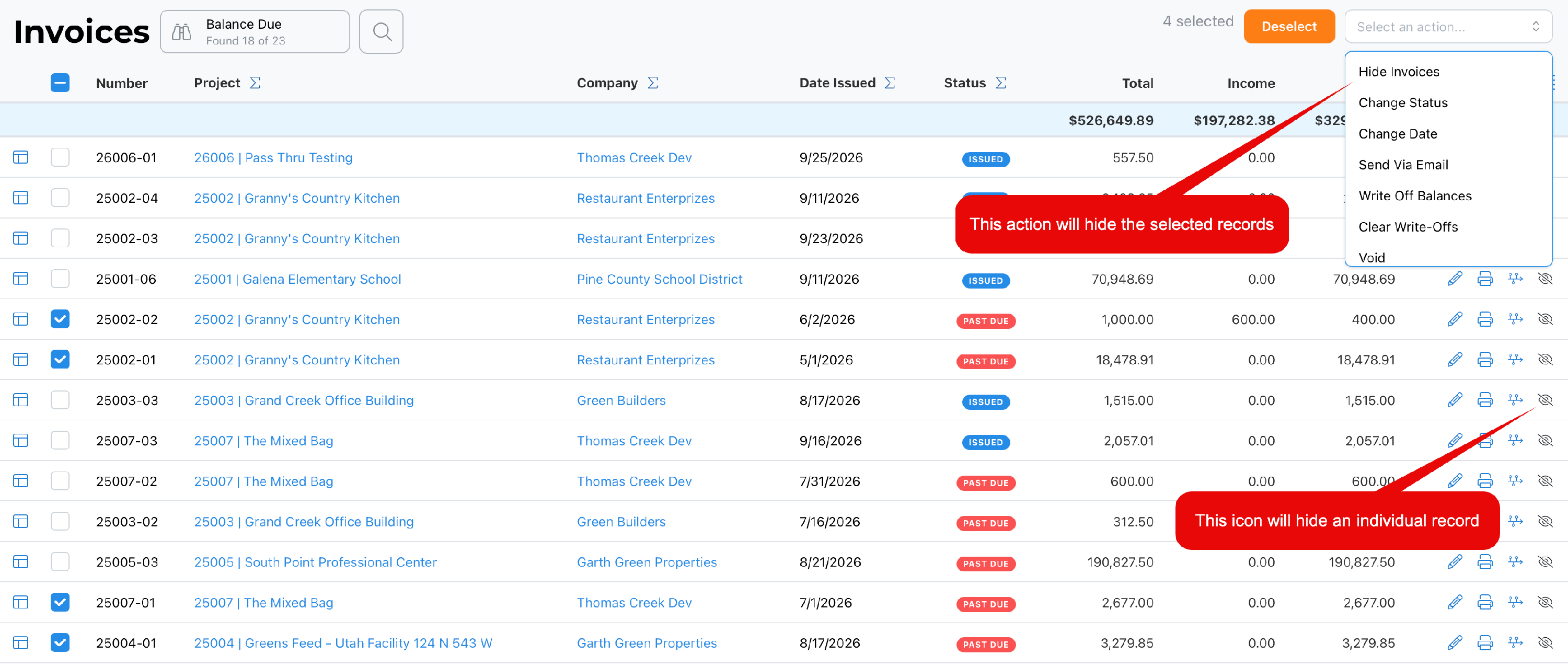
This is useful in situations where a query gets you most of the way there, but not all the way. For example, if you're pulling together a project list for a proposal or resume and your query returns 16 matching records, but 3 of them aren't ones you actually want to include, you don't need to rebuild the query — just hide those 3 records directly.
Once hidden, you can:
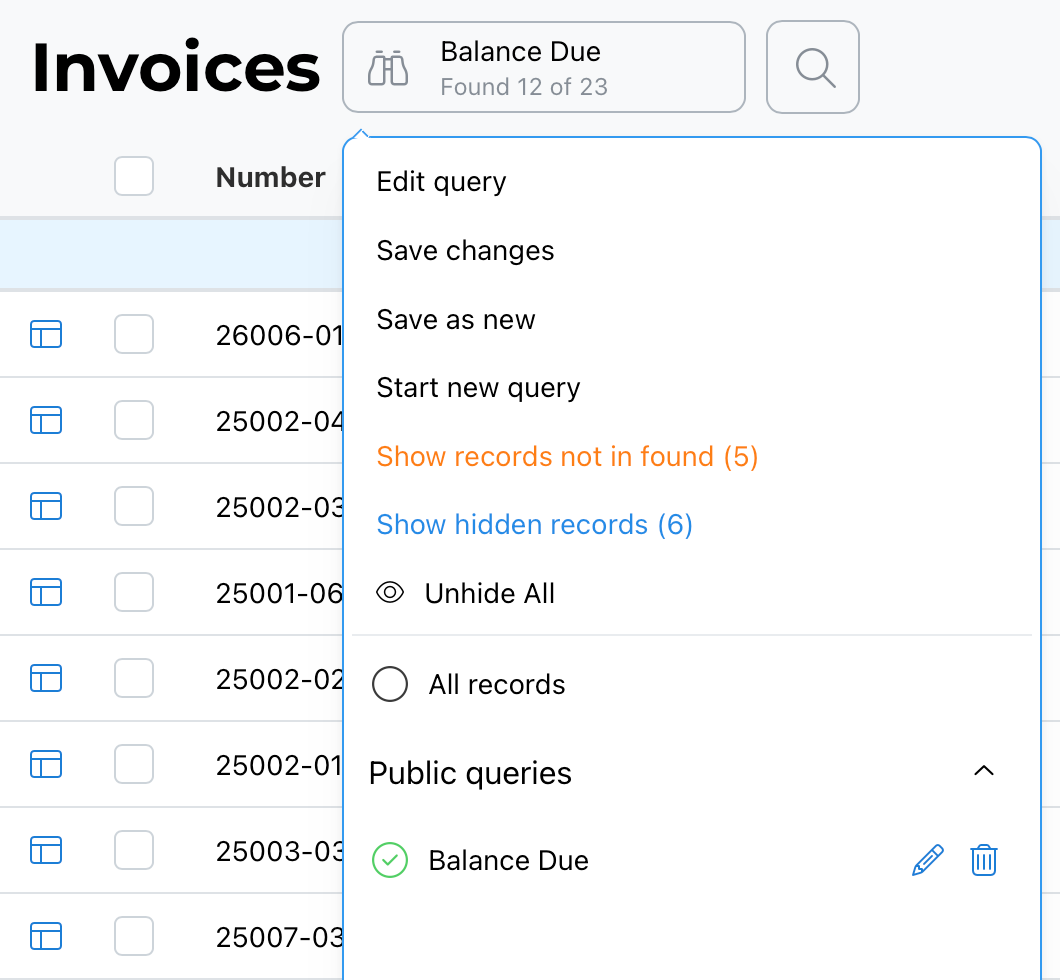
- Select Show Hidden Records to view just the records you've hidden, and toggle back to your visible found set.
- Select Unhide All to restore every hidden record back into view.
Hidden Records Are Excluded From Reports
This matters beyond just what you see on screen: hidden records are excluded from reports and printing. If your found set has 18 records but 5 are hidden, a report run from that view will only include the 13 visible records — not the full 18. In the video's example, a status summary report reflected only 13 invoices (6 Issued, 7 Past Due) rather than all 18, because 5 had been hidden from the found set at the time.
Selecting Unhide All restores those records to the found set, and a report run afterward will reflect the full original count again — since you're still working from the same underlying query, just with everything back in view.
Building an Inverse Query Instead of Toggling
Show Records Not in Found is a quick, one-time toggle — but if you want an inverse result as an actual saved query you can run repeatedly, the Advanced Query Editor lets you build that directly.
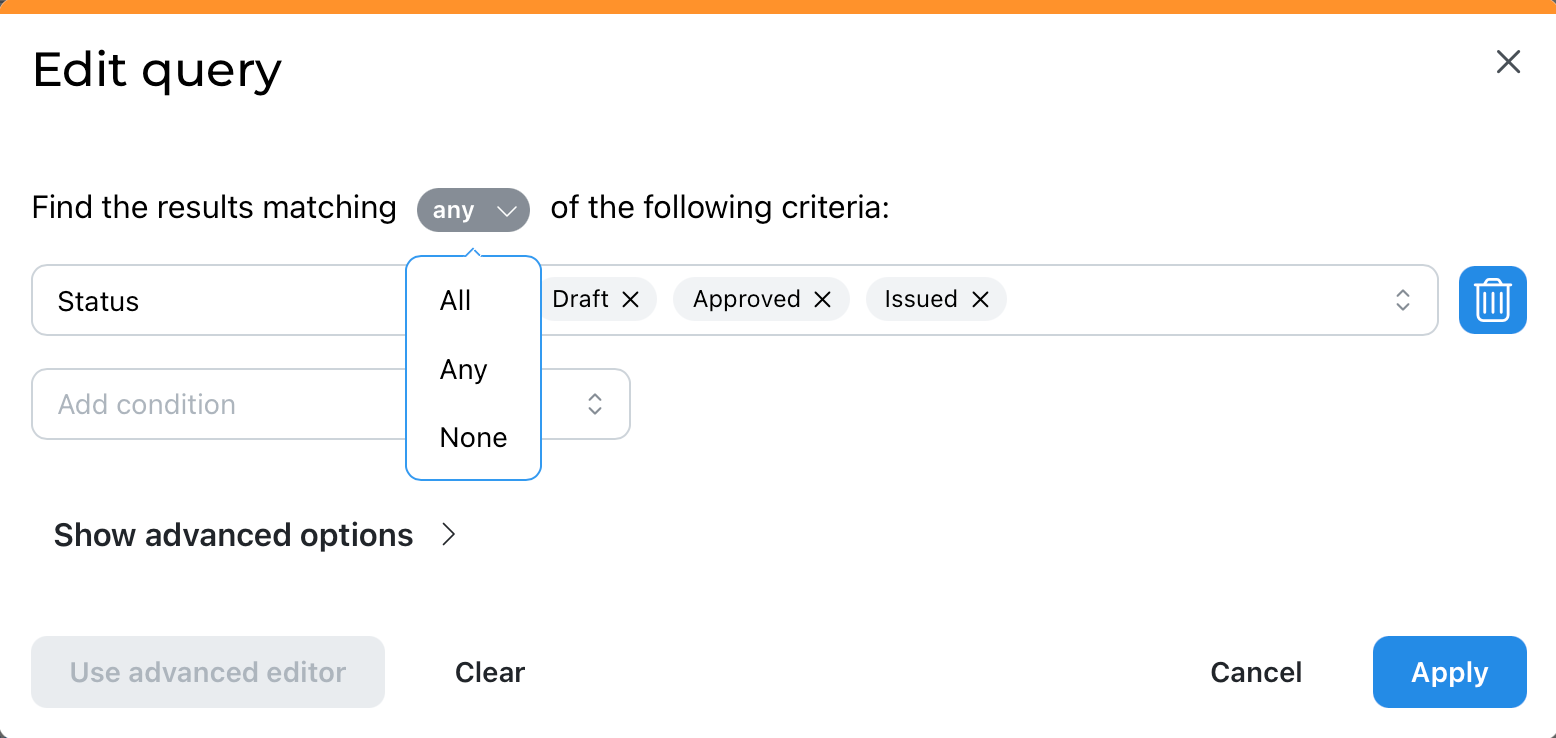
For example, a query set to find invoices with any of the statuses Draft, Approved, or Issued returns exactly those. Changing the match type to None instead of Any (rather than All, which couldn't be satisfied by any record) returns everything that does not have those statuses — in this case, invoices that are Paid, Written Off, or Void. Unlike the found/not-in-found toggle, this becomes a real query you can save and reuse going forward.
See Using the Advanced Query Editor for more on building queries with All, Any, and None logic.
Best Practice
Before running a report, check whether any records in your found set are currently hidden — a report will silently reflect only the visible subset, which can understate totals if you're not expecting it. Use Show Records Not in Found for a quick one-off check of what a query excluded, but build a proper inverse query with None logic in the Advanced Editor if you want that exclusion as a reusable, saved report.
Summary
A found set is the group of records a query returns from the database. Show Records Not in Found toggles to the excluded records for a quick check. Hiding records (individually or in batch) removes them from the current view without altering the underlying query or database — and critically, hidden records are excluded from reports and printing, so a found set with hidden records will produce a smaller report than its total count suggests. Show Hidden Records and Unhide All let you review and restore hidden records at any time. For a genuine inverse result as a saved, reusable query, use the Advanced Query Editor's None match type instead of toggling.