
Project Editor - Billing Rates
In this video, we will show you how to set up billing rates on the Billing Rates tab. This works identically whether you're in a project or a proposal, so this article applies to both.
Importing Master Billing Rates
Rather than building rates from scratch on every project, you can import from your master billing rates. Master rates can be grouped — for example, into sets for government work, general work, or other categories you define — so you can think of these groupings as different price sheets.
Filter the list to the group you want (such as Government or General), then either select the specific rates you need or choose Select All to bring in the entire group, and import.
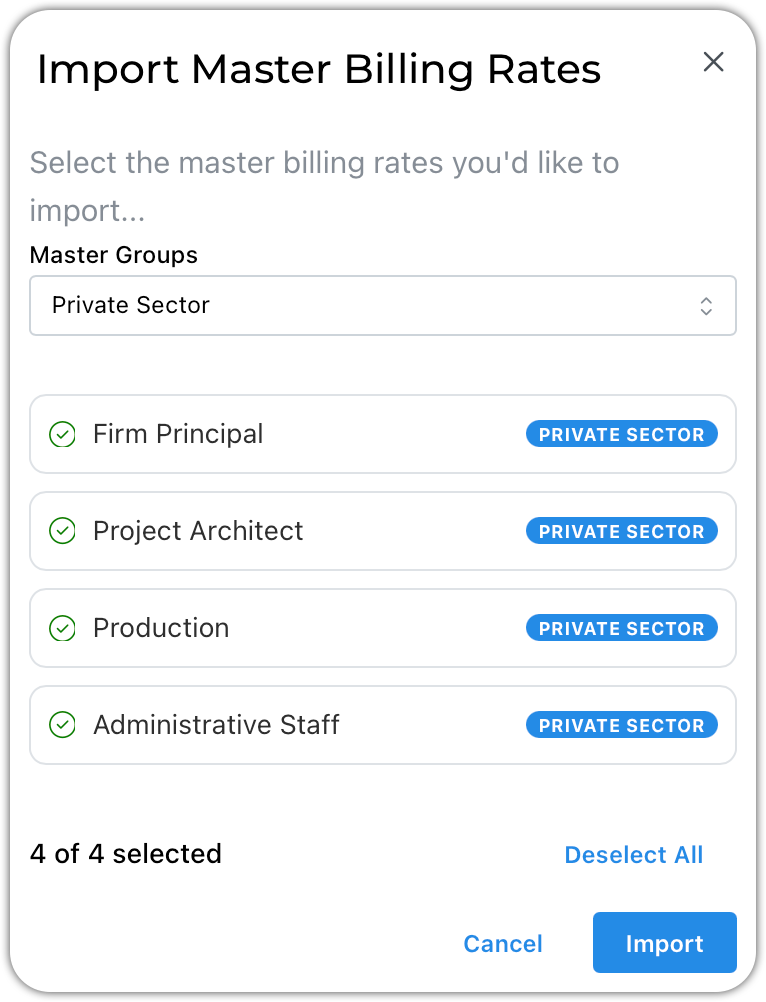
1. Filter the list by group as shown here (optional) 2. Select the rates you would like to add to your project 3. Click Import
Modifying Rates After Import
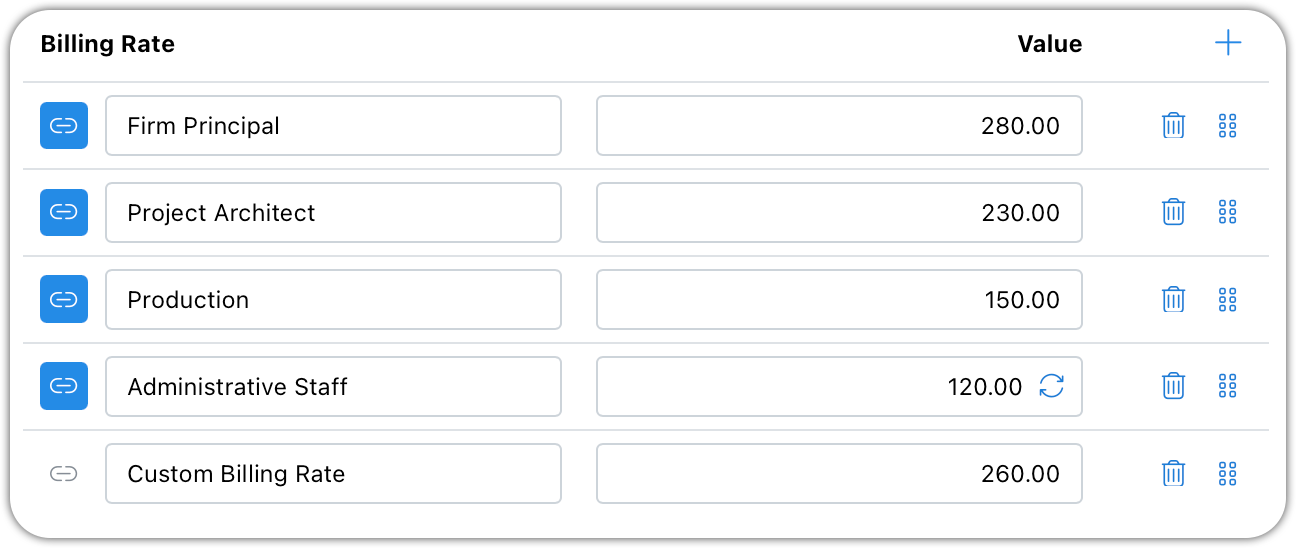
Once billing rates are imported into a project or proposal, you can adjust them freely:
- Change a rate's dollar amount — for example, updating a role to $150/hour for this specific job.
- Reorder rates by dragging and dropping them into whatever sequence you prefer to see them in.
- Add a custom rate with its own name and dollar amount for anything that doesn't come from your master rate list.
Keeping Rates Linked to Master Rates
Rates imported from your master list stay linked to that master rate. If a linked rate's value on the project doesn't match the current master rate, a refresh icon appears next to it. Selecting the icon updates that individual rate to match the current master value.
You have two ways to keep rates current:
- Update rates one at a time on a project or proposal by selecting the refresh icon as needed.
- When updating a master rate itself, choose which projects or proposals should receive that update, and apply the change across all of them at once.
Custom rates are never linked to a master rate, so refreshing has no effect on them — their value only changes when you edit it directly. If you'd like to connect a custom rate to a master rate after the fact, select the link icon next to it and choose a master rate to link to. Only master rates not already in use on that project or proposal will appear as options, since a master rate can't be linked twice.
Why Billing Rates Matter
Billing rates on a project are mandatory — team members must select a billing rate when recording time against that project, so this tab needs to be set up before anyone can log time.
Best Practice
Import from your master rate groups whenever possible rather than building custom rates from scratch. This keeps your project and proposal rates connected to a single source of truth, so future rate changes can be pushed out broadly instead of updated project by project. Reserve custom rates for genuine one-off situations, since they won't benefit from linked updates.
Summary
Import billing rates from your master rate groups, filtering by category as needed. Modify imported rates, reorder them, or add custom rates as required. Linked rates show a refresh icon when they're out of sync with the master rate and can be updated individually or in bulk; custom rates stay independent unless you link them to a master rate. Billing rates must be set up before time can be recorded on a project.