
Address Book Settings
BaseBuilders' Address Book is where you manage your companies and contacts. Before adding records, it's worth setting up Disciplines and Tags, since these determine how easily you'll be able to search, sort, and report on your address book later.
It also has tables for phone numbers and addresses. Each company and contact can have an unlimited number of addresses and phone numbers.
Disciplines
Disciplines describe what type of company a record is — for example, Civil Engineer, Architect, General Contractor, or Government Agency. Setting these up well matters because disciplines drive both searching and reporting:
- You can search your address book by discipline — for example, pulling up every civil engineering firm you've worked with.
- On projects, you can run reports by client type, which relies on the discipline assigned to that client.
Avoid generic disciplines like "Client." Instead, assign the discipline that actually describes the company or contact — Architect, City, County, Residential Client, Private Citizen, and so on. This keeps your reporting meaningful, since "client type" reporting depends on knowing what kind of client each one is.
Managing Disciplines
- Use the plus (+) button to add a new discipline.
- Use the pencil icon to edit an existing discipline.
- Delete disciplines you no longer need, or archive them instead if you want to retain historical data without cluttering your active list.
Best Practice: Use Prefixes for Grouping
Consider prefixing related disciplines with a common word so they group together when sorted or searched — even if that's not how you'd naturally say the term out loud. For example, prefixing contractor types as "Construction – Electrical Contractor," "Construction – General Contractor," or "Construction – HVAC Contractor" groups them together in a sorted list. The same applies to engineers (Electrical Engineer, Environmental Engineer, Mechanical Engineer) or government entity types — grouping by prefix makes it much faster to scan a long list and find the right entry when sorted alphabetically by discipline.
Tags
Tags let you label companies and contacts with additional information beyond discipline, and can be applied to both. Common uses include:
- Marketing segments — for example, tagging contacts who should receive a holiday card, your newsletter, or an invitation to a firm event.
- Specialties — for example, tagging a curtain wall specialist, a structural engineer with high-rise experience, or a mechanical contractor specializing in smoke evacuation systems.
- Custom categories — such as region, if you want to segment your address book by geographic area.
Tags make it possible to search and filter your address book for very specific combinations — for example, pulling every structural engineer tagged with a curtain wall specialty, or exporting a mailing list of contacts tagged for your newsletter.
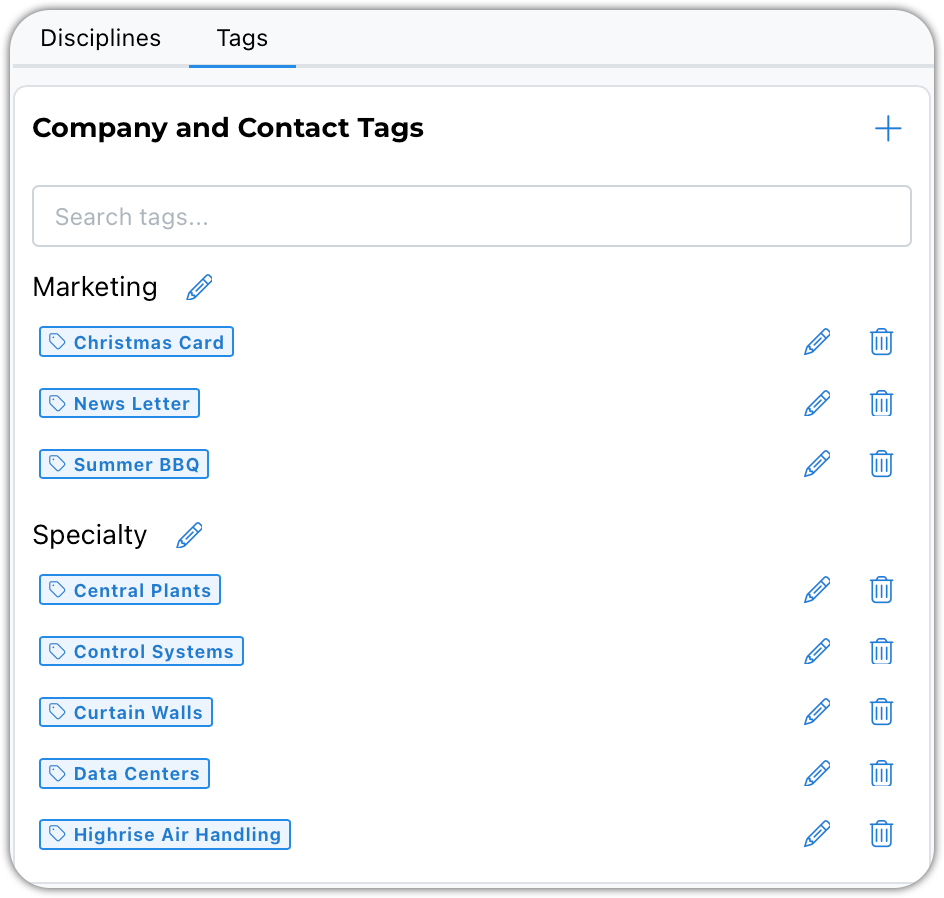
Managing Tags
- Use the pencil icon to edit existing tags and categories.
- To add a new tag, select an existing category or create a new one — when creating a new category, type your category name and select Create New.
- Delete tags you no longer want to use.
Best Practice
Set up disciplines and tags thoughtfully before you begin adding large numbers of companies and contacts — retrofitting this structure onto an already-large address book takes far more effort than starting with a clear system. Use specific, descriptive disciplines rather than generic ones, apply consistent prefixes where grouping helps, and use tags for anything you'll want to search, filter, or export on later — marketing lists, specialties, or custom segments like region.
Summary
Address Book settings are found under Settings > Address Book. Disciplines describe the type of company or contact and drive both search and client-type reporting — use specific, descriptive terms and consider prefixes to group related disciplines together when sorted. Tags provide additional, flexible labeling for marketing segments, specialties, or custom categories like region, and can be applied to both companies and contacts to support targeted searching and exporting.