
Updating Your Payment Method
Steps to Update Your Payment Method
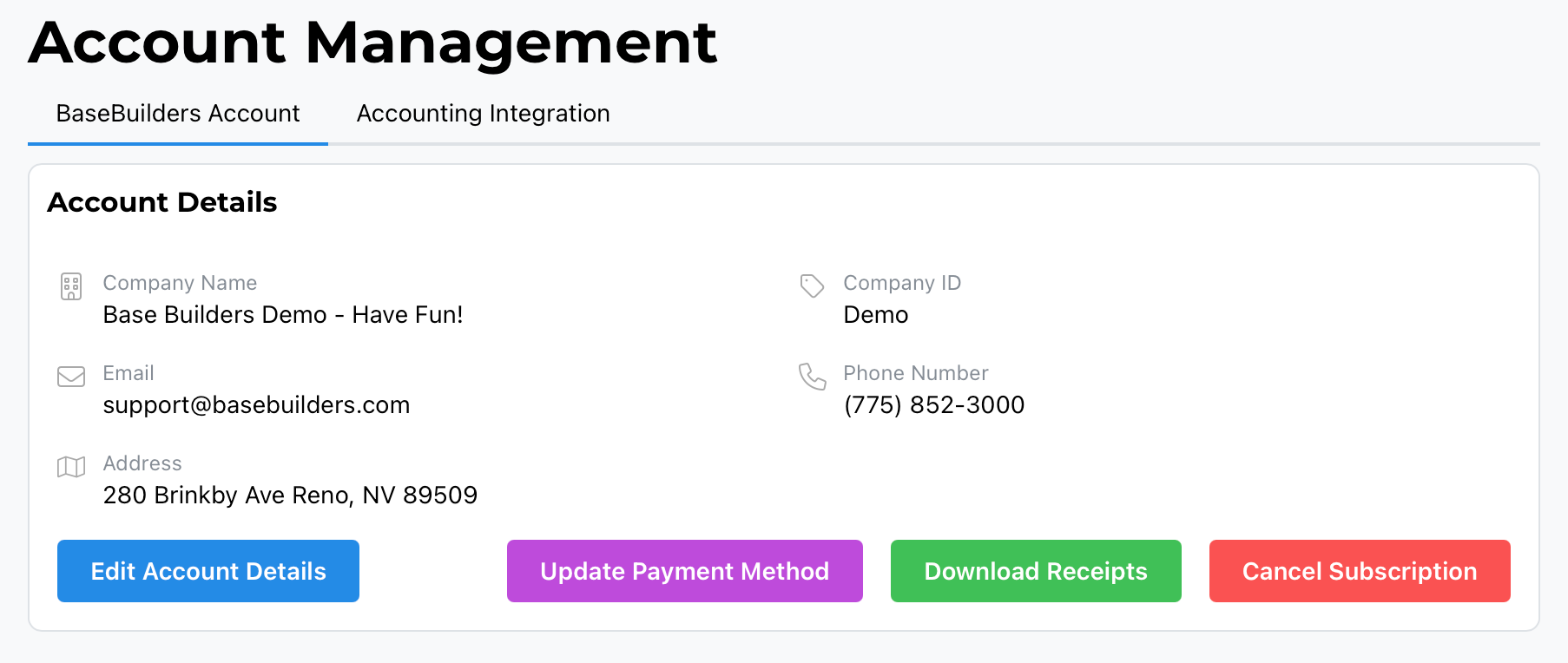
- Select your name in the lower left corner and open Settings.
- Go to Account Management. This defaults to the BaseBuilders tab for your account.
- Select the purple Update Payment Method button.
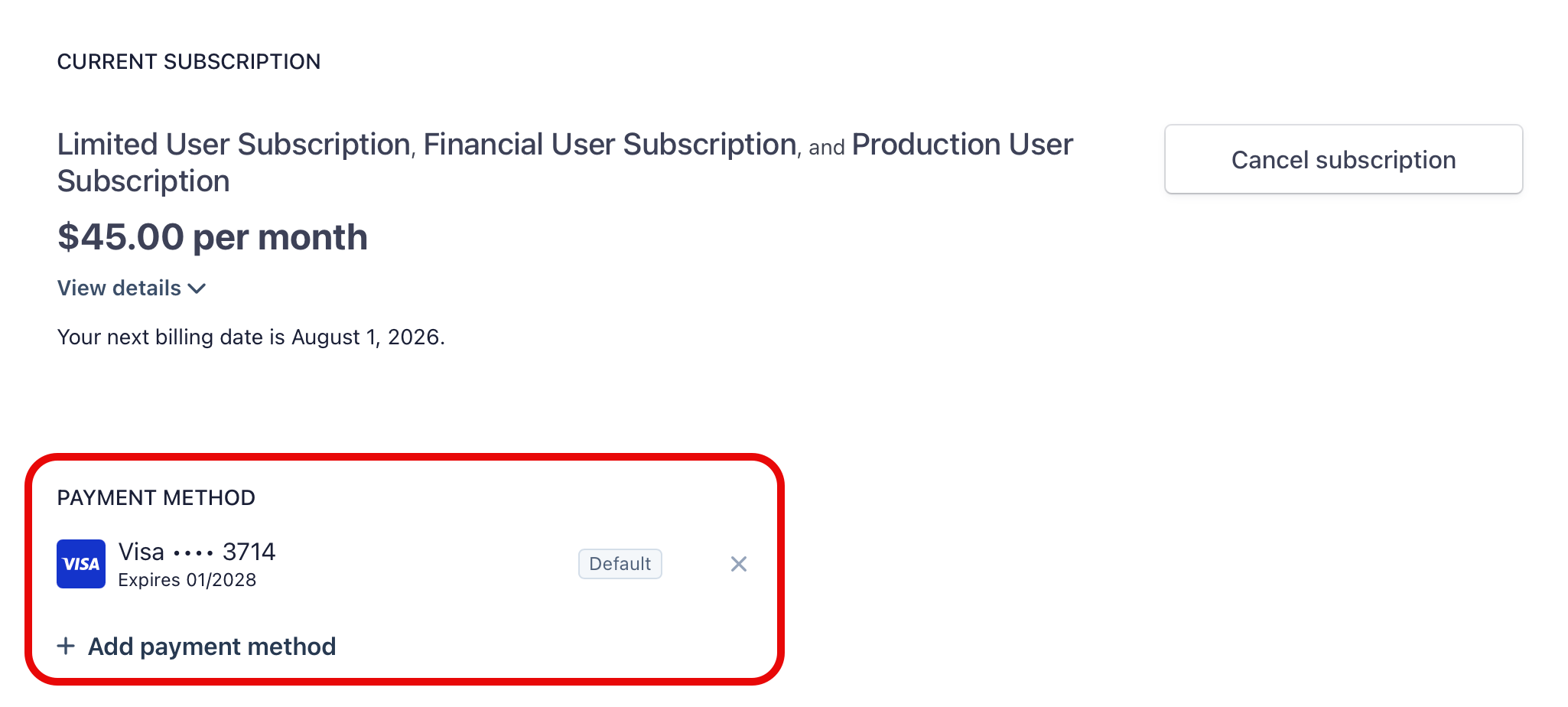
- You'll be taken into our Payment Management System, where you can see your existing payment method.
Adding a New Payment Method
Existing payment methods can't be edited directly. Instead:
- Select Add Payment Method and enter the details for your new payment method.
- Once added, set the new method as your default.
- After the new method is set as default, you can remove the old payment method.
Best Practice
Add and confirm your new payment method as the default before removing the old one, so there's no gap where your account has no valid payment method on file.
Summary
To update your payment method: Settings > Account Management > Update Payment Method, which opens the Payment Management System. Add a new payment method (existing methods can't be edited), set it as your default, then remove the old payment method.