
Batch Actions - Companies
When working with a found set of companies, you can select multiple records and apply a batch action to all of them at once — no need to open and edit each company individually.
Selecting Companies
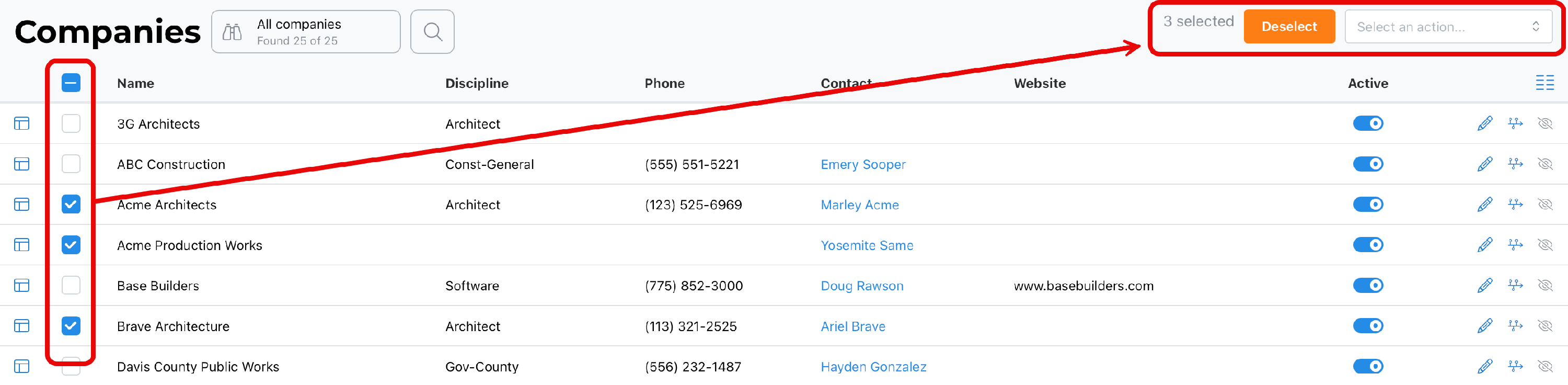
Select companies one at a time using the checkboxes, or select all records in the found set. A live count of selected records appears in the top right, along with a Deselect button to clear your selection at any time. Once at least one company is selected, the Select an action... dropdown reveals the batch actions available for this module.
~ Available Actions ~
These actions may be updated from time to time. Hopefully, we will remember to keep this document current.
Hide Records
Removes the selected companies from the current found set, without archiving, deactivating, or otherwise changing the underlying records. This is useful for narrowing what you're looking at without permanently altering anything.
Change Discipline
Presents a list of disciplines to choose from, and applies the selected discipline to every company in the current selection.
Apply Tags
Presents a list of tags to choose from, and applies the selected tag(s) to every company in the current selection.
Remove Tags
The reverse of Apply Tags — presents a list of tags and removes the selected tag(s) from every company in the current selection.
Activate and Deactivate
A toggle that sets the status of the selected companies to active or inactive.
Best Practice
Use Change Discipline in batch when cleaning up address book records that were entered inconsistently or before your disciplines were fully set up — see Address Book Settings for guidance on structuring disciplines well. Use Activate and Deactivate to keep your active company list focused on firms you currently work with, without losing historical records.
Summary
Select companies individually or all at once, then choose an action from the dropdown that appears once records are selected. Use Deselect at any time to clear your current selection.