
Credit Memo
How to Issue a Credit Memo
A credit memo, also known as a credit note, reduces the amount due on an invoice that has already been issued. This article walks through creating one from the invoice detail page and explains what BaseBuilders creates behind the scenes.
If you're not sure whether a credit memo is the right tool, see Discount vs. Credit Memo vs. Write-Off.
Starting a Credit Memo
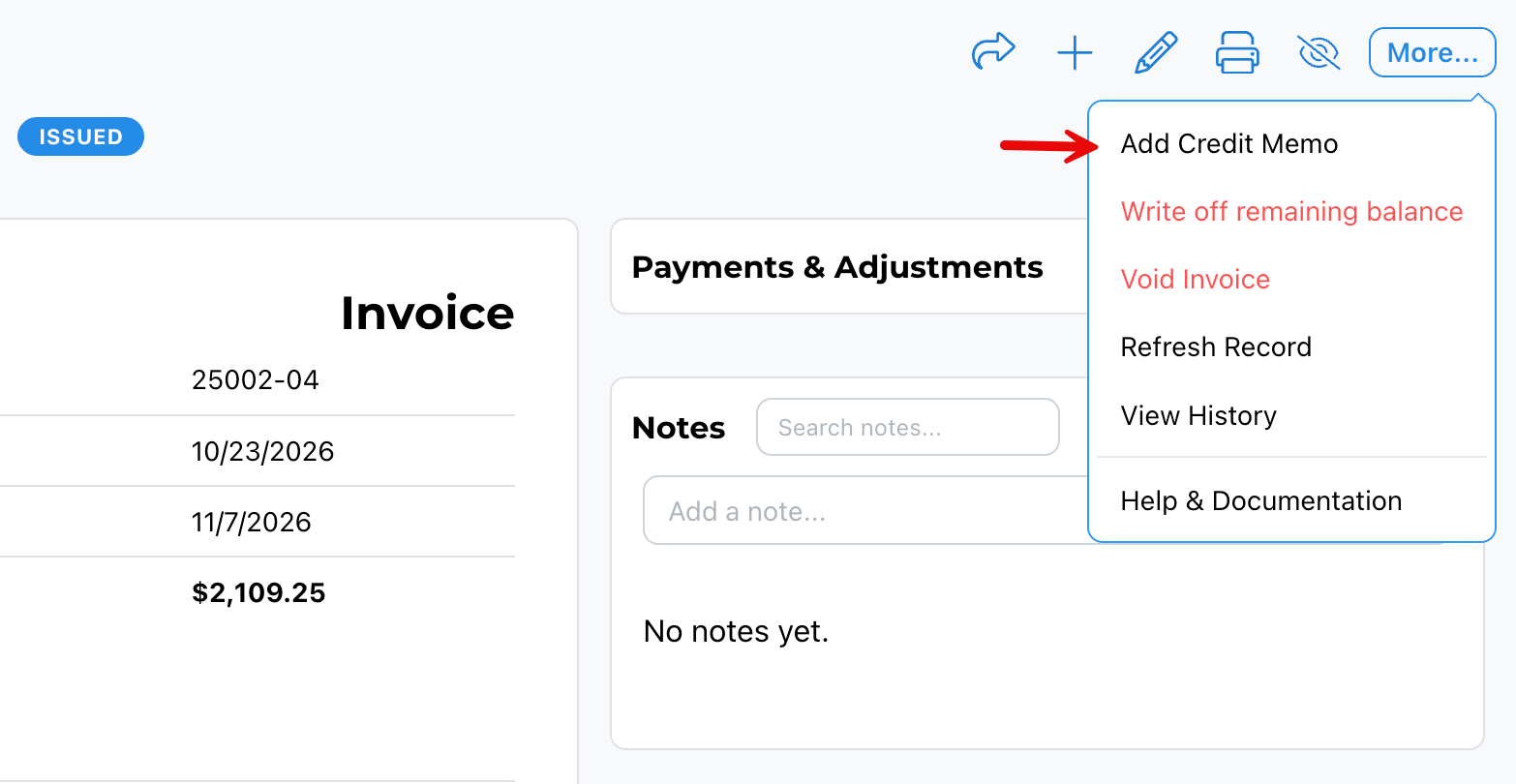
Open the invoice you want to credit, then select More and choose Add Credit Memo. The same menu is where you write off the remaining balance or void an invoice.
Choosing What to Credit
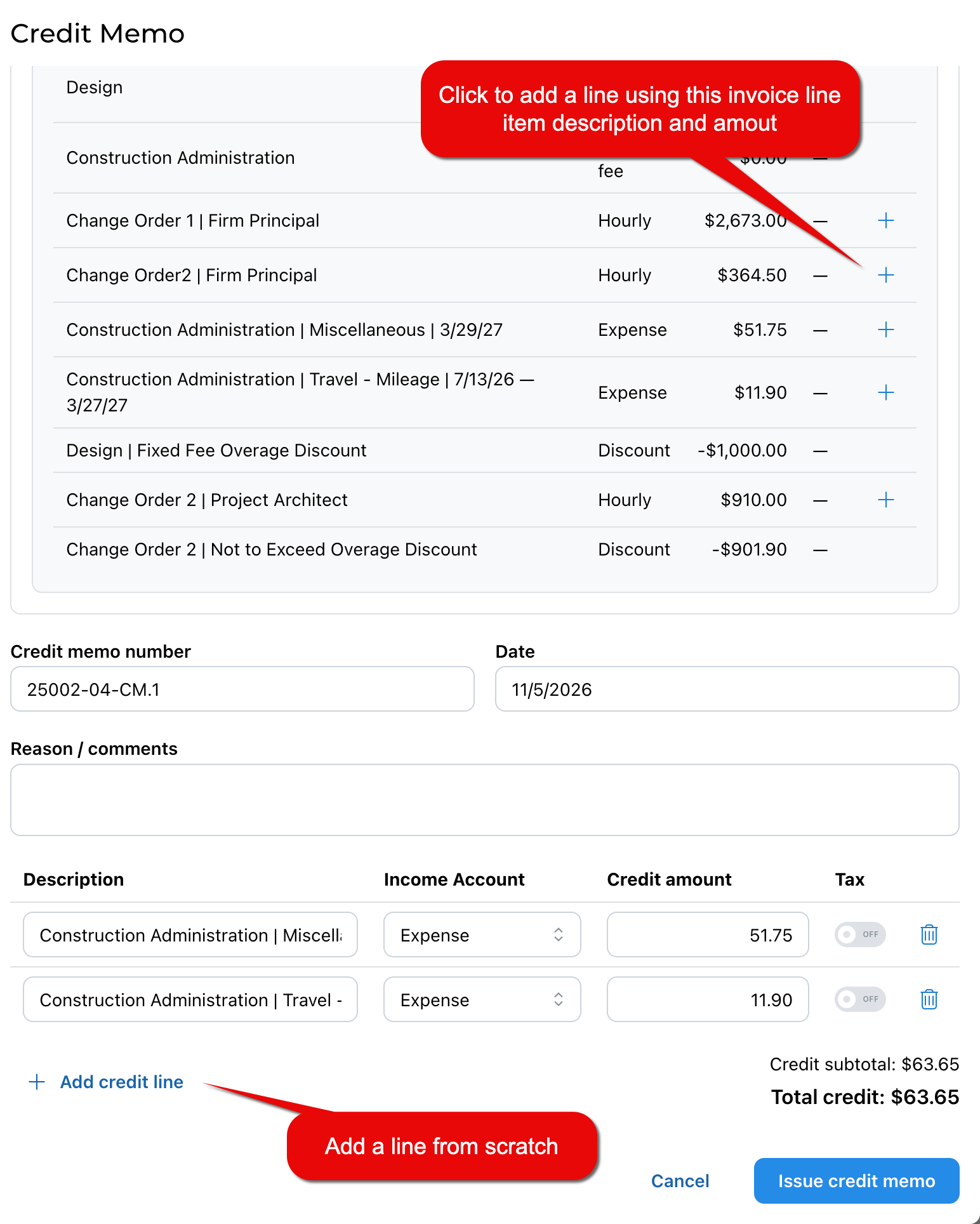
The credit memo window gives you two ways to build your credit:
- Credit any amount with any description. You have full freedom to enter whatever amount and wording you need.
- Select line items from the original invoice. This is often quicker, especially when specific items are in dispute. Select the line items you want to credit and they are added as credit lines for you.
In the example, two expenses on the invoice were in dispute, so both were selected and added as credit lines. You can still add another credit line manually if you need one.
Reviewing the Credit Lines
Each credit line shows:
- A description.
- The income account the credit will be applied to when it reaches your accounting software.
- The credit amount.
- A tax toggle. If the original item was taxed, turn this on.
The window totals your credits at the bottom, so you can confirm the amount before issuing. You can also add comments explaining the reason for the credit.
Numbering and Issuing
The credit memo is given its own number automatically. In the example, the number is built from the original invoice number (which includes the project number), followed by CM, followed by a serial number, such as 25002-04-CM.1. The serial number counts up because you may issue more than one credit memo against the same invoice. You can set up how credit memos are numbered in your numbering settings.
When everything looks right, select Issue Credit Memo.
What BaseBuilders Creates
Issuing a credit memo creates two records:
- The credit memo itself, which is effectively a negative invoice. It looks like an invoice but is labeled as credits, and shows the account it is credited to along with the total. It also appears in the project's invoices automatically. Credit memos aren't normally sent to clients, but you can send one if you want to.
- A matching income record, labeled Credit Application, that applies the credit to the original invoice.
The income record contains one negative line for the credit memo and one positive line applied to the project's invoice, so it nets to zero. This is what allows the credit to flow to the invoice automatically. On the original invoice, you'll see the credit appear as credits applied, reducing the balance due.
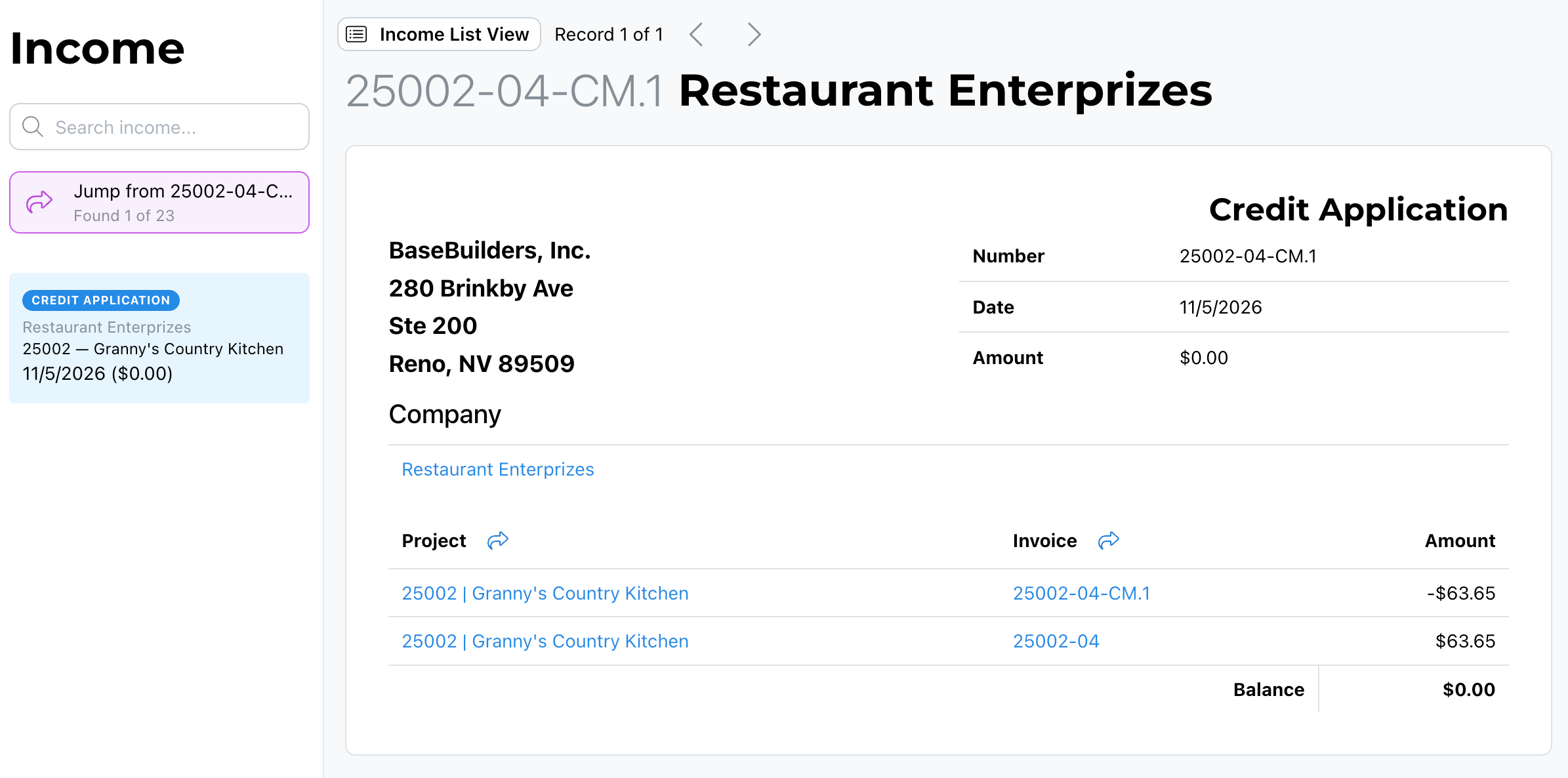
To move between the two records, use Jump. Selecting the link on the credit memo takes you to the credit memo, so use Jump if you want to land on the income record.
Editing and Correcting a Credit Memo
Because the credit memo and its income record are tied together, the system protects them from changes that would put them out of balance:
- On a credit memo, only the text can be changed. You can't change dollar amounts or line items.
- The income record can't be edited directly.
If you made a mistake, delete the credit memo and start over.
Credit Memos, Voids, and Write-Offs
Once an invoice has received money, it can no longer be voided, and that includes money received in the form of a credit memo. After a credit memo is applied, the Void option is no longer available on that invoice. If you need to clear out what remains, use Write off remaining balance from the same More menu.
Best Practice
Select the disputed line items from the original invoice rather than typing amounts by hand when you can, since it keeps your credit tied to what was actually billed. Review the credit lines and total carefully before you issue, because amounts and line items can't be edited afterward. If you do make a mistake, delete the credit memo and issue a new one.
Summary
To issue a credit memo, open the invoice, select More, and choose Add Credit Memo. Credit any amount or select disputed line items from the original invoice, review the income account, credit amount, and tax for each credit line, add a comment if needed, and select Issue Credit Memo. BaseBuilders numbers the credit memo from the original invoice number plus CM and a serial number, creates the credit memo as a negative invoice, and creates a matching Credit Application income record that applies the credit to the invoice. Only text can be edited afterward, so delete and recreate the credit memo to fix a mistake. An invoice that has received money, including through a credit memo, can't be voided, but you can write off the remaining balance.