
Running Quick Reports
Quick Reports let you turn any list view into a printable or downloadable report in just a few clicks. They are available in nearly every module. Here is how Quick Reports work and how to generate one using queries and column sets.
Overview
Quick Reports summarize exactly what you’re currently viewing on screen. They use:
- The records returned by your query
- The columns included in your column set
Once configured, Quick Reports can be printed or downloaded instantly—no report setup required.
Before You Run a Quick Report
There are two things you must understand before running a Quick Report:
Queries (Which Records Are Included)
A query controls which records appear in the list.
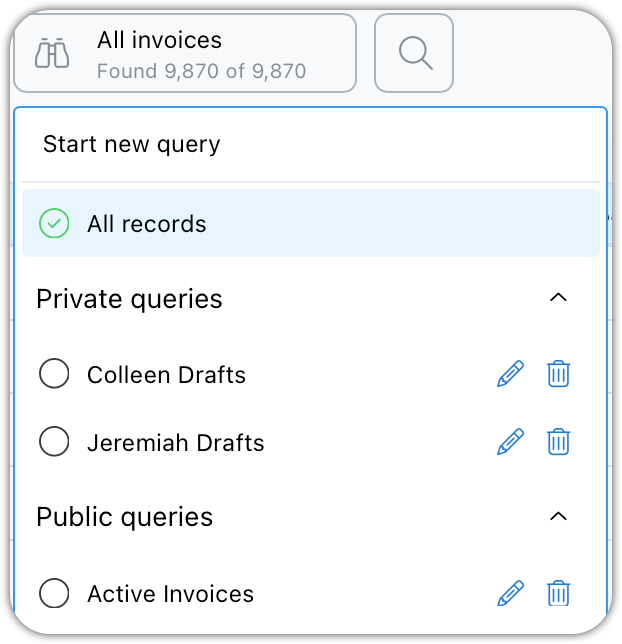
- You may use an existing saved query
- You can customize or build a new query as needed
- Only the records returned by the query will appear in the report
Column Sets (Which Data Is Included)
A column set controls which columns appear in the report. Click the column set button to see your saved sets.
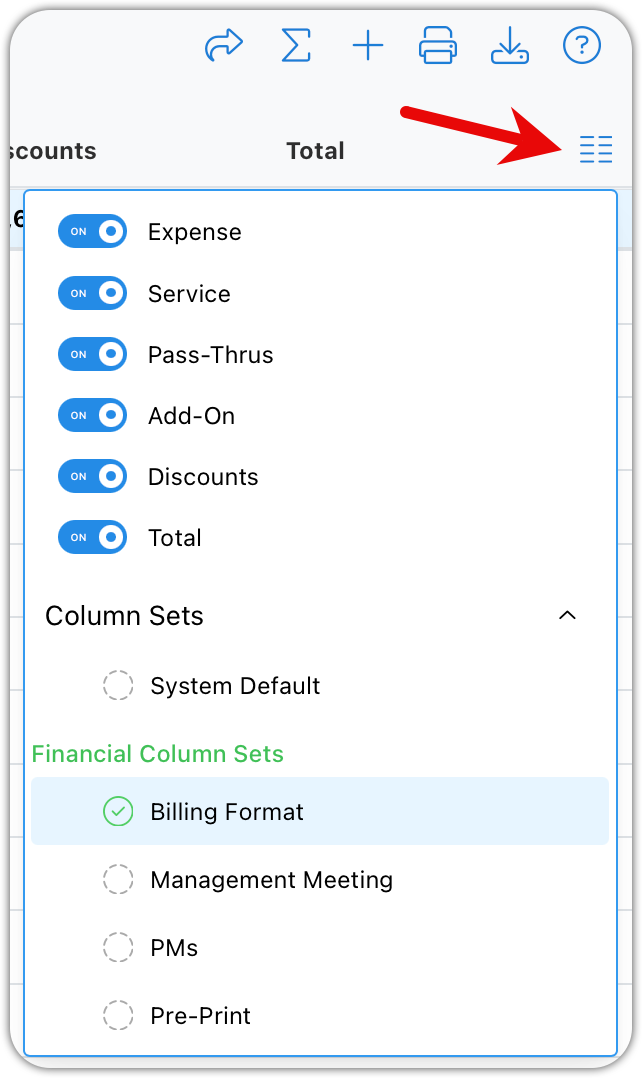
- Quick Reports only include the columns currently visible
- Switching column sets changes the data included in the report
- If the data isn’t visible on screen, it won’t be in the report
Step-by-Step: Running a Quick Report
- Navigate to a list view (for example, Time Slips)
- Apply the query that returns the records you want
-
Select the column set that shows the data you want included
-
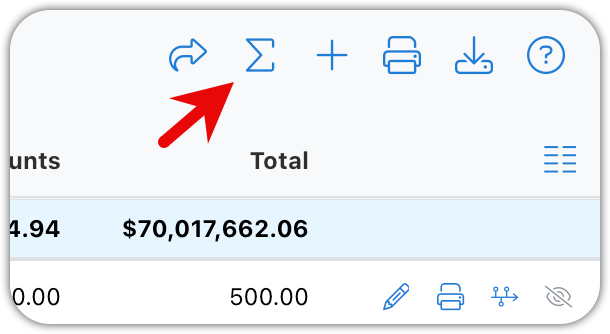
Click the Reports button
-
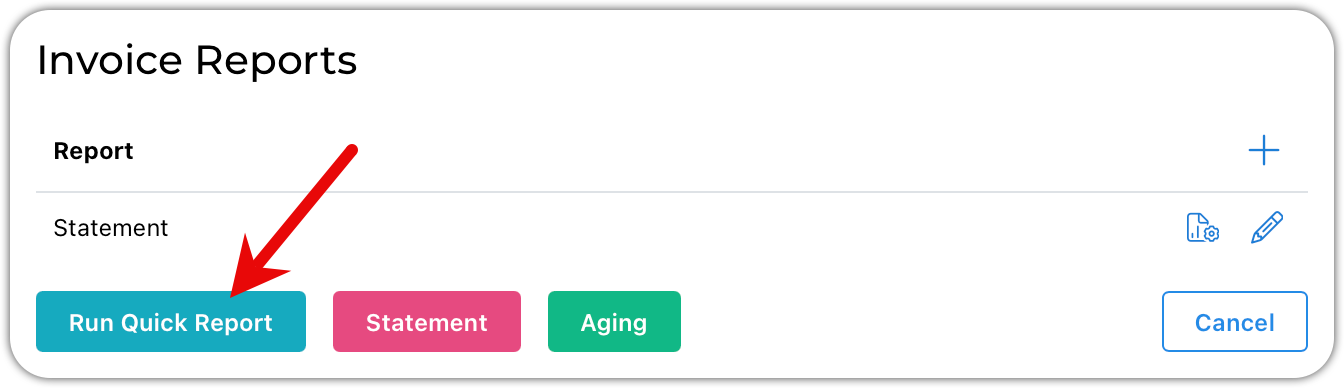
Select Quick Report
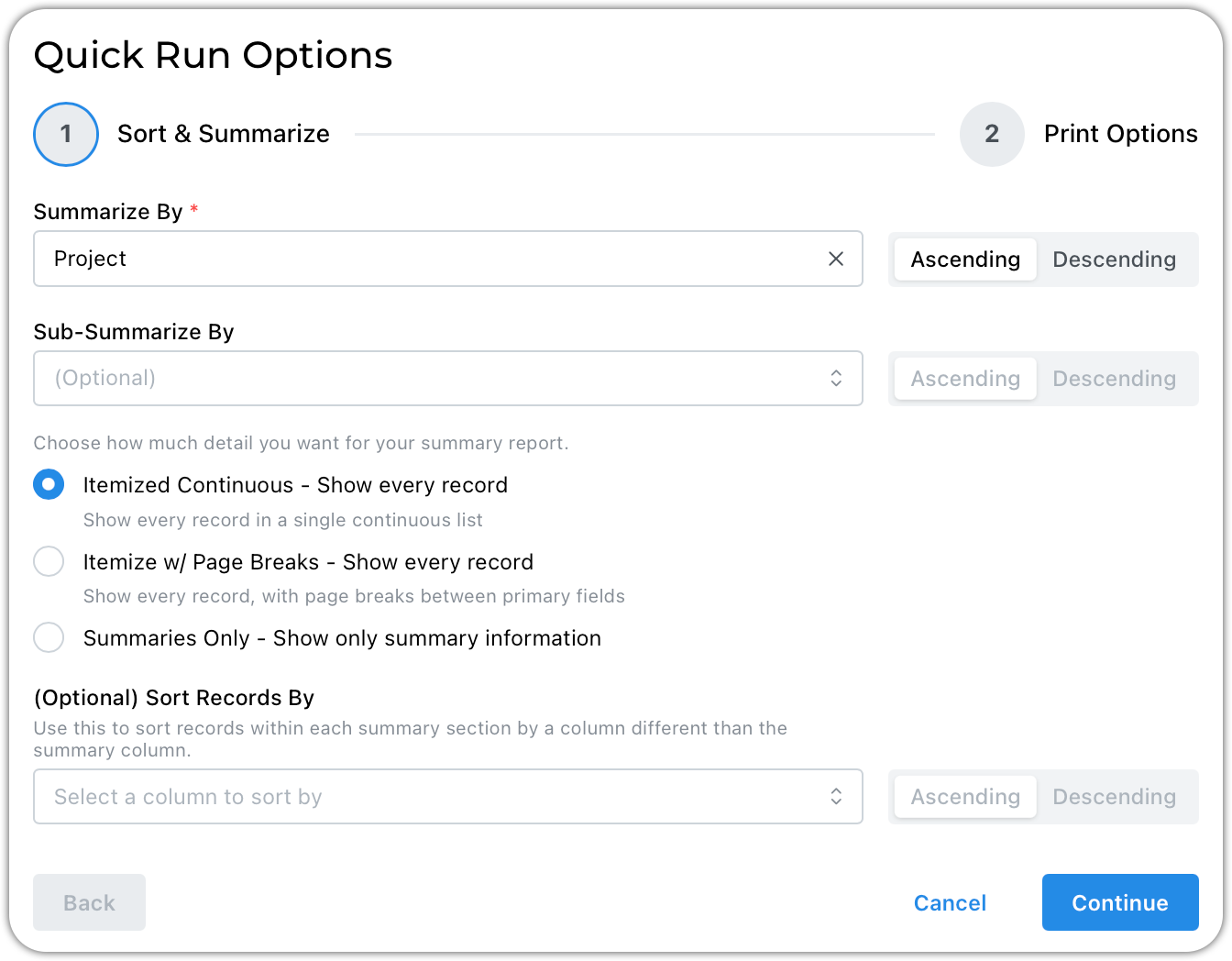
- Configure your summaries from the options presented
- You can have up to three nested summaries
- Primary, secondary, and tertiary
- Click Continue to set up your print options and run the report
Tips & Best Practices
- Always confirm your query first
- Double-check your column set before running the report
- Quick Reports summarize what you see, not everything in the system
- Use summaries to turn large data sets into readable reports