
Batch Actions - Projects
When working with a found set of projects, you can select multiple records and apply a batch action to all of them at once — no need to open and edit each project individually.
Selecting Projects
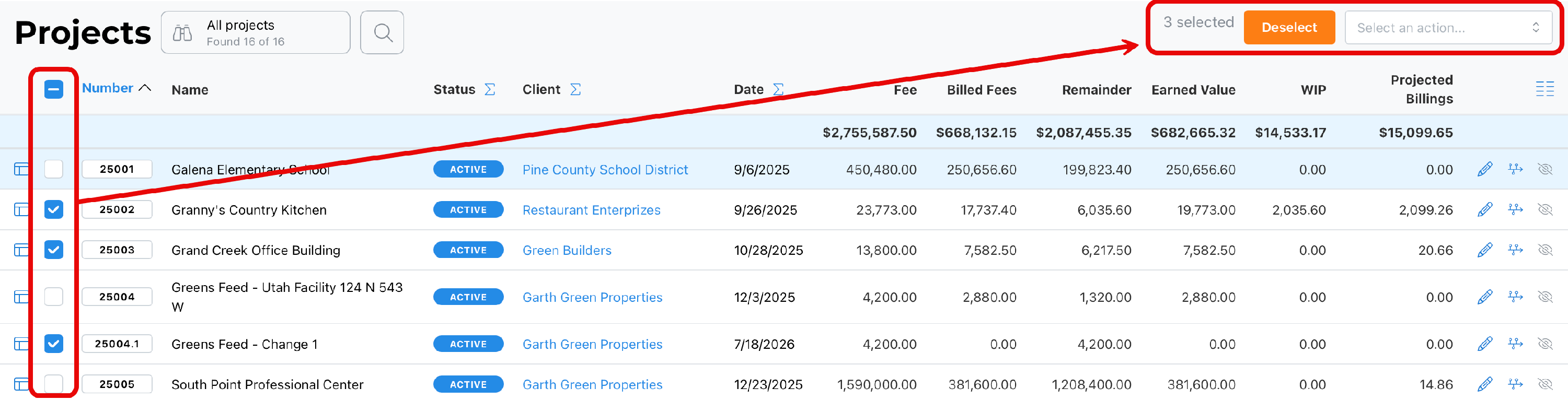
Select projects one at a time using the checkboxes, or select all records in the found set. A live count of selected records appears in the top right, along with a Deselect button to clear your selection at any time. Once at least one project is selected, the Select an action... dropdown reveals the batch actions available for this module.
~ Available Actions ~
These actions may be updated from time to time. Hopefully, we will remember to keep this document current.
Hide Records
Removes the selected projects from the current found set, without archiving, deactivating, or otherwise changing the underlying records. This is useful for narrowing what you're looking at without permanently altering anything.
Rocket Billing™️
Launches Rocket Billing™️ for the selected projects, drafting invoices for all of them in one pass. See Rocket Billing for more on how draft invoices are generated.
Closeout
Closes out the selected projects. This marks every phase on each selected project as completed and sets its Percent Complete to 100%.
Apply Tags
Presents a list of tags to choose from, and applies the selected tag(s) to every project in the current selection.
Remove Tags
The reverse of Apply Tags — presents a list of tags and removes the selected tag(s) from every project in the current selection.
Change Status
Changes the status of all selected projects to whichever status you choose from the list presented.
Update Percent Complete
Updates Percent Complete on each phase of the selected projects, based on BaseBuilders' system calculations - view this article: Project Actions - Update Percent Complete. Check out Work in Progress (WIP) Calculation for how this calculated value is derived and how it interacts with manually set values.
Sync Billing Rates
Syncs the billing rates on the selected projects with the current values of their linked master billing rates - view this article: Periodic Updates to Billing Rates. Only rates that are linked to a master rate are updated — custom, unlinked rates are unaffected. See Setting Up Master Billing Rate Roles for more on linked vs. custom rates.
Sync Invoice Markup Settings
Updates the invoice markup settings (billable expense markup and consultant pass-through markup) on the selected projects to match the current defaults under Settings.
Sync Invoice Terms Settings
Updates the default invoice terms on the selected projects to match the current terms configured under Settings.
Sync Invoice Tax Settings
Updates the tax settings on the selected projects to match the current tax rates and taxable item selections configured under Settings.
Sync Invoice Print Settings
Updates the invoice print settings on the selected projects to match the current master print settings.
These five sync actions are the project-level equivalent of the Maintenance tab described in Applying Settings Updates to Existing Projects — the difference being that these apply only to the projects you've selected, rather than every project in the system.
Best Practice
Use Hide Records to work through a large found set without losing your place, and reserve Closeout for projects that are genuinely finished — since it marks every phase complete regardless of actual progress. When applying Update Percent Complete in batch, review the results afterward for any phases where you'd rather set a specific value manually. Use the sync actions here when you only need to update a targeted set of projects; for firm-wide changes, the Contract Management Maintenance tab is more appropriate since it isn't limited to a selected set.
Summary
Select projects individually or all at once, then choose an action from the dropdown that appears once records are selected. Use Deselect at any time to clear your current selection.