
How to Query Time Slips
This article walks through building a query on Time Slips — including the fields you'll find, how they behave, and a couple of power-user tips. The same general patterns apply across most modules in BaseBuilders.
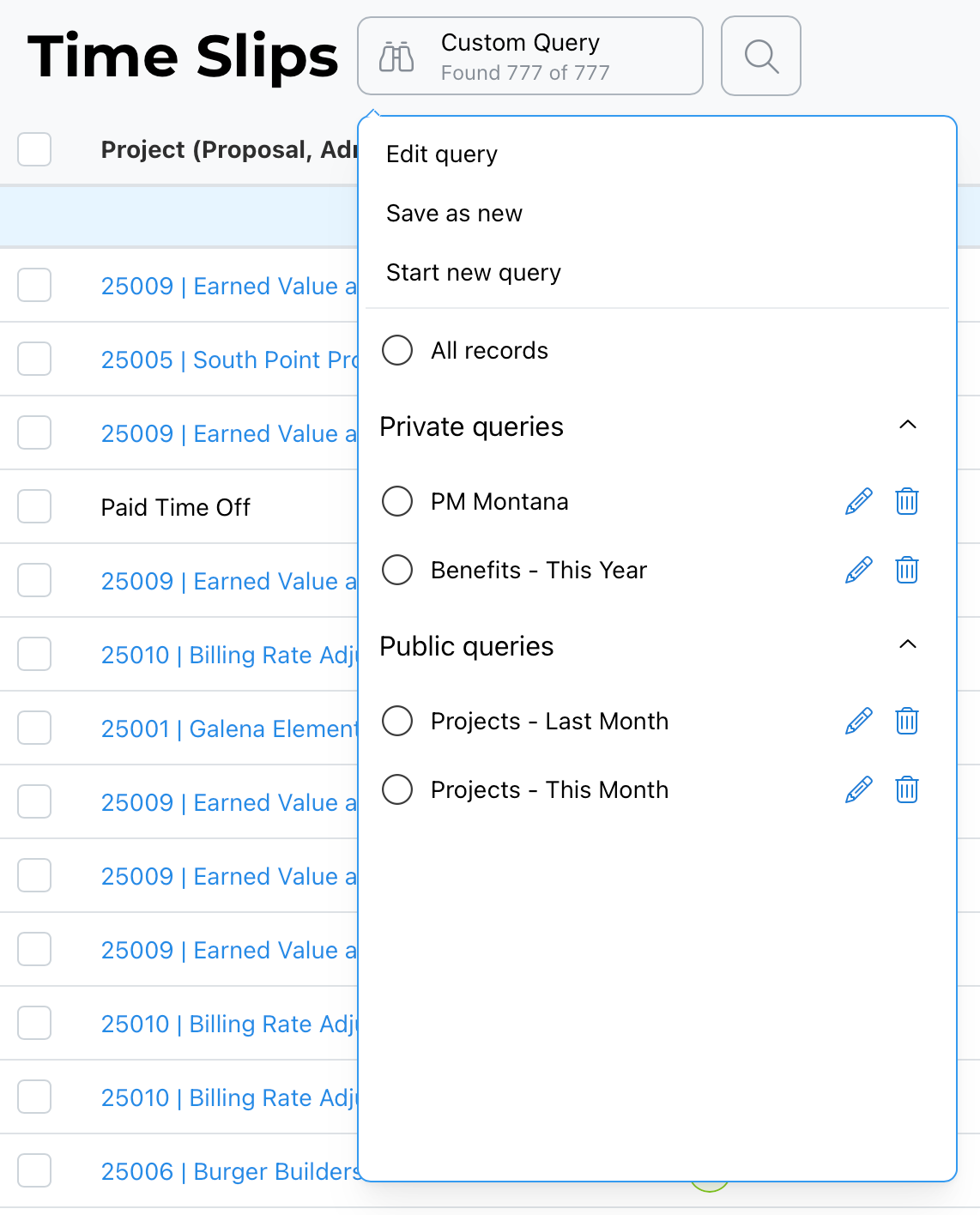
Starting or Editing a Query
If you already have a query running, you have two options for building a new one:
- Start a new query, building criteria from scratch.
- Edit your current query and select Clear to wipe out the existing criteria and start over from the same panel.
Date Range
Every query includes a Date Range, which can be set two ways:
- Start and End dates — specific fixed dates.
- Named date ranges — options like This Week, Last Week, This Month, Last Month, This Quarter, Last Quarter, This Year, Last Year, Current Pay Period, or Previous Pay Period.
Named date ranges are dynamic. If you save a query using "Last Month," it will automatically update to reflect whatever the actual last month is each time the query runs — you don't need to edit or resave it as time passes.
[SCREENSHOT: Edit query panel showing Date Range and calendar picker]
Calendar Picker Tip
When using the calendar picker to select a specific date, there's a faster way to navigate than clicking through arrows one month at a time:
- Select the chevron to move month to month.
- Select the month name to jump to a year view, where you can move year to year.
- Select the year to see a range of years and jump directly to one — useful for jumping back several years at once, such as to 2020.
Multi-Select Fields
Any field labeled "Select values" (plural) supports selecting multiple entries at once — for example, selecting three specific staff members to query only their time, rather than running three separate queries.
Comments
The Comments field searches for a pattern match within the comments recorded on time slips — useful for finding time slips with specific notes or keywords.
Radio Buttons vs. Checkboxes
- Radio buttons allow only one selection at a time (for example, Regular Time, Overtime, or All Types).
- Checkboxes allow multiple selections at once (for example, Classification: Project, Proposal, Admin, Benefit).
If none of the classification checkboxes are selected, the query returns all time matching your other criteria, regardless of classification. If you select more than one checkbox — for example, both Project and Proposal — any sub-criteria specific to just one classification (such as Project-specific fields) is ignored, since the query is now spanning multiple classifications at once.
Searching for Projects
When querying by project, you have a few ways to narrow results:
- Enter a project number.
- Enter a project name.
- Select specific projects directly, useful if you want to query across a handful of particular projects at once.
Applying the Query
Once your criteria are set, select Apply. It's not necessary to first switch your view to "All Records" or clear your current view before running a new query — queries always search the full database directly, not just the records currently displayed on screen. Whatever you're viewing when you start a new query has no effect on what that query returns.
Best Practice
Use named, dynamic date ranges (like "Last Month" or "Current Pay Period") instead of fixed dates whenever you plan to save and reuse a query — this keeps the saved query relevant without needing to edit it every period. Be mindful when selecting multiple classification checkboxes at once, since doing so causes any classification-specific criteria to be ignored.
For more precise, multi-condition querying — combining All/Any/None logic or extending and constraining results — see Using the Advanced Query Editor.
Summary
Time slip queries are built from a Date Range (fixed or dynamic named ranges), multi-select "Select values" fields, a Comments pattern-match field, single-select radio buttons, and multi-select checkboxes (where selecting none returns all classifications, and selecting more than one ignores classification-specific sub-criteria). Projects can be searched by number, name, or direct selection. Queries always search the full database rather than the currently displayed records, so there's no need to reset your view before running a new one. For more advanced logic, see the companion article on the Advanced Query Editor.