
How To Query Projects
This article walks through building a query on Projects, including the tabs, field types, and options you'll encounter. If you haven't already, see How to Query Time Slips for the general query concepts this article builds on.
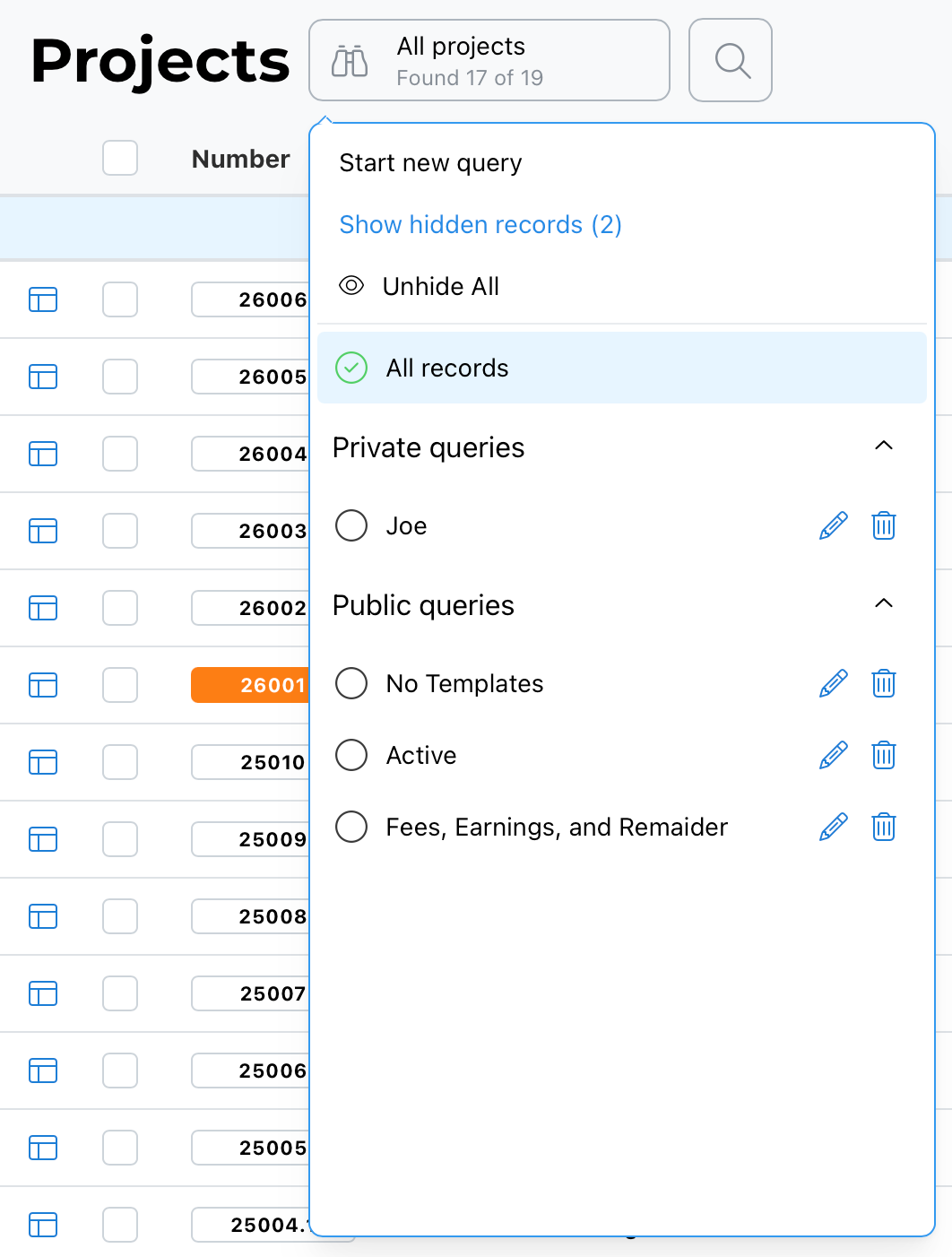
Public, Private, and System Queries
When opening the query menu, you may see several categories of saved queries:
- Public queries — saved and shared for anyone to use.
- Private queries — visible only to the person who created and saved them.
- System queries — built-in queries provided by BaseBuilders.
Select Start New Query to build one from scratch, or edit an existing query and select Clear to reset it and start over — the same approach covered in the Time Slips article.
Three Tabs of Criteria
The Projects query has more fields than fit on one screen, so criteria are split across three tabs. All criteria across all three tabs apply together when you select Apply — you can move between tabs freely to review or adjust your selections before running the query.
Date Range
The date fields query a project's main date (not a phase or invoice date). As with Time Slips, you can set a specific Start and End date, or select a dynamic named date range (such as This Month or Last Month). Named ranges automatically update as time passes — especially useful for saved queries you run repeatedly.
Multi-Select and Text Fields
- Select values fields (plural) are multi-select — for example, selecting more than one person for Primary staff, or clearing one you don't need.
- Project Number and Project Name are text fields. Entering just one or two characters searches for that pattern as a "starts with" match — for example, entering "25" or "26" would find every project numbered starting with that year.
- Client is a multi-select field pulling from your address book, so you can query across several clients at once.
- Status is also a multi-select value field.
Billing Format and Fee Range
- Billing Format is a multi-select — choose Fixed Fee, Hourly, Cost Plus, or any combination to find projects billed under those formats.
- Fee Range lets you set a minimum and/or maximum fee to find projects within a specific range.
Selecting Specific Projects
If you already know exactly which projects you want to review, you can multi-select them directly by name, rather than relying on other criteria to narrow the list — useful when you have a specific, known group of projects you want to query together.
Billing Checkboxes
The Billing section uses checkboxes, meaning you can select more than one option at once — choose whichever combination applies to your query.
Tags and Custom Fields
- Tags is a multi-select field, letting you query by any combination of tags applied to your projects (for example, "Kitchen Hood" or "Cooling Tower").
- Custom Fields — such as Building Type or Funding Source — behave according to however each field was set up. A dropdown-style custom field (like Building Type) allows only one selection at a time, while other custom field types may behave differently depending on their configuration.
Applying the Query
Once your criteria are set across whichever tabs you've used, select Apply.
Best Practice
Use dynamic named date ranges rather than fixed dates for any query you plan to save and reuse, so it stays current without manual updates. When you already know the specific projects you want, select them directly rather than trying to reconstruct that exact set through other criteria.
For more precise, multi-condition querying — combining All/Any/None logic or extending and constraining results — see Using the Advanced Query Editor.
Summary
Project queries are spread across three tabs and include a main date range (fixed or dynamic), multi-select fields for staff, client, status, billing format, and tags, text fields for project number and name (pattern-matched as "starts with"), a fee range, direct multi-select of specific projects, billing checkboxes, and custom fields that behave according to their configured type. All criteria apply together when you select Apply. For more advanced logic, see the companion article on the Advanced Query Editor.