
How to Report Payouts by Project (line item report)
Do you need to know how much you paid out on each project during a specific time period, such as last year? The Payout Line Items report is built for exactly that. This article explains why it exists and how to use it. It's a sister report to How to Report Income by Project.
Why the Project List Isn't Enough
The Projects list includes a Total Payouts column, but it doesn't tell you when those payouts happened. Any of the numbers on the Projects list are the cumulative total for the project. There's no way to filter them or change them based on a date range.
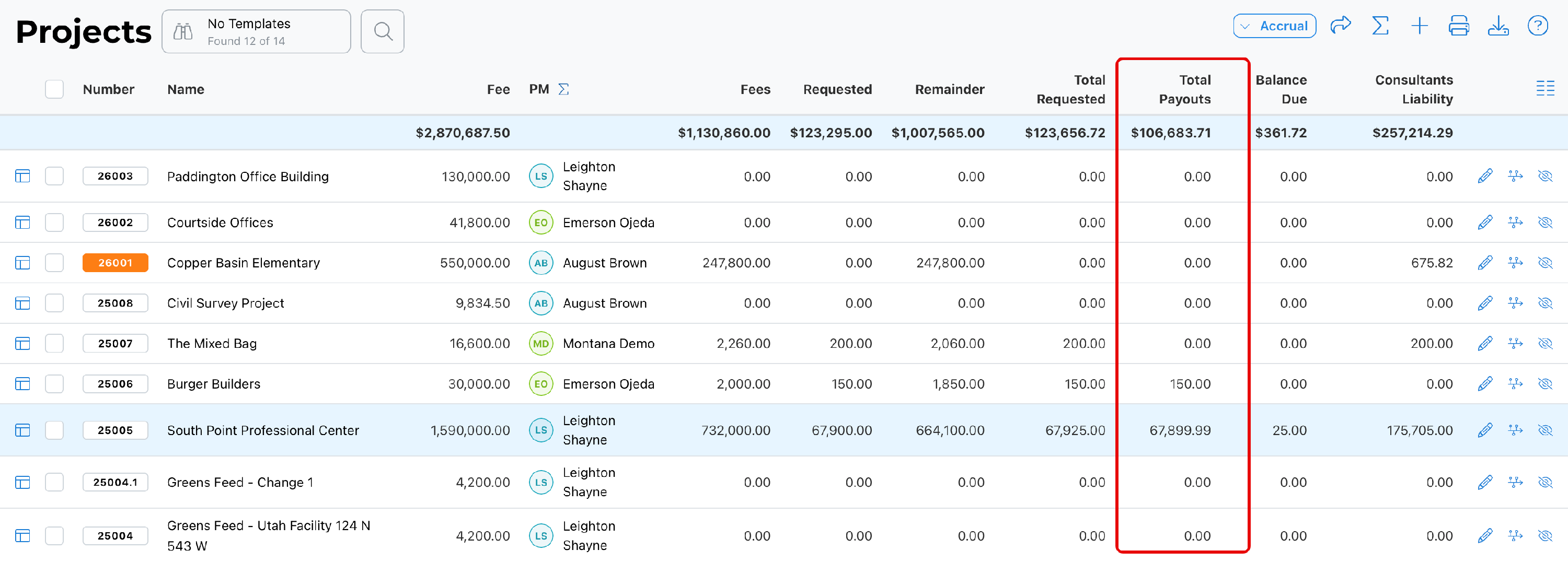
To look at payouts for a specific period, go to the Payouts module instead.
Why You Can't Just Total the Payout Records
Say you run a query for last year's payouts and want to see them by project. This might come up for an errors and omissions (E&O) insurance report, where the insurer wants to know how much in fees you brought in, and also how much of that was carried by your subconsultants.
The problem is that one payout can go to more than one project. If the same consultant works on multiple projects and you're paying them from money you've received, you'll typically cut a single check that covers several projects. In the Payouts list, those records show up as multiple projects rather than one, so the record's total can't be attributed to any single project.
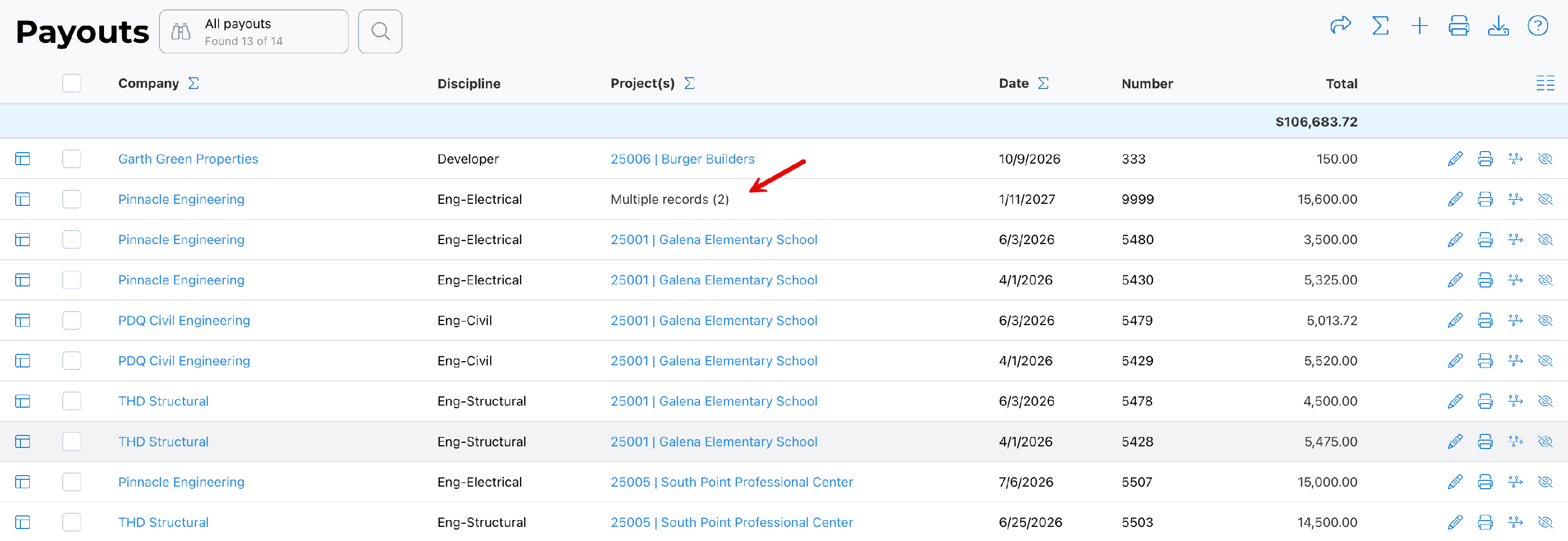
The Solution: Payout Line Items
Every line item of a payout is tied to an invoice, and every invoice is tied to a project. The Payout Line Items report works at that level, so each dollar is attributed to the right project.
Running the Report
- Go to Payouts and run a query for the date range you want to report on, along with any other criteria you need.
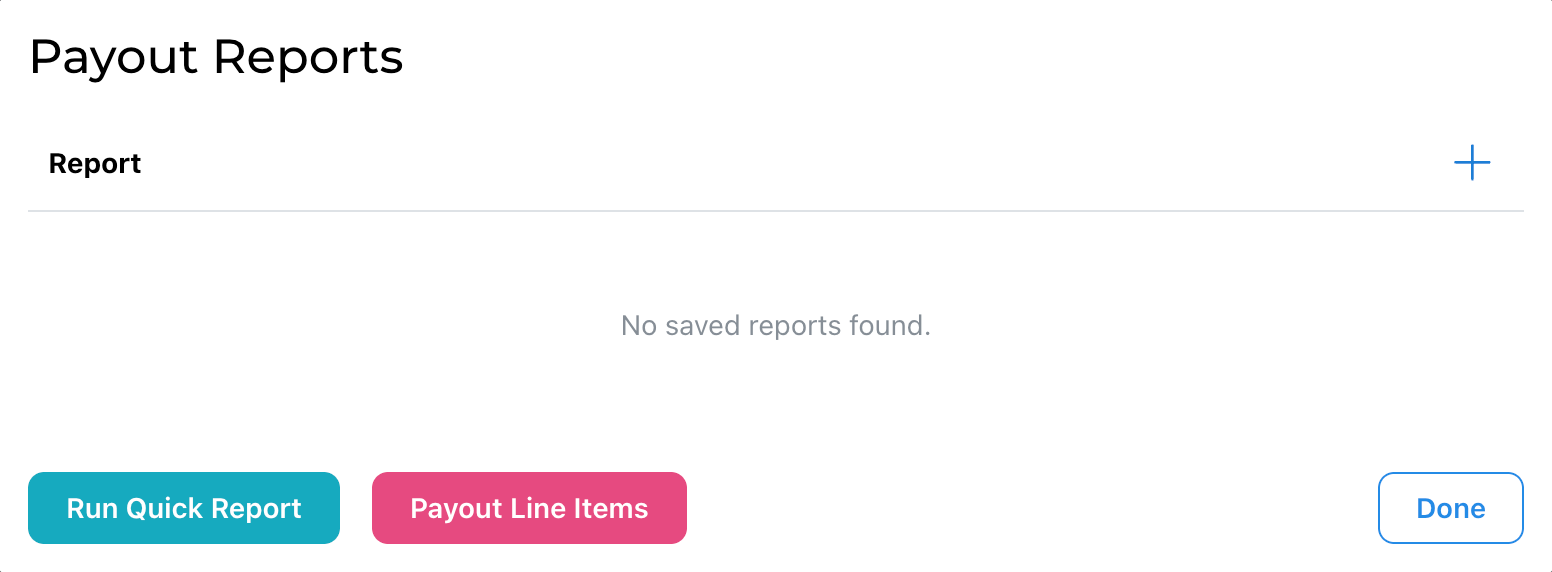
- Select Reports and choose Payout Line Items.
- Choose how you want it summarized.
Summarizing the Report
You can summarize the report in many ways:
- By project. The most common choice.
- By project, then consultant. See which consultants were paid on each project.
- By consultant, then project. See each consultant's payouts broken out by project.
There are almost countless combinations, so choose the one that fits what you're trying to learn.
Best Practice
Use the Payout Line Items report, rather than the payout list totals, whenever you need payouts broken out by project. For E&O reporting, pair it with the Income Line Items report so you can show both the fees you brought in and the share carried by your subconsultants.
Summary
The Projects list shows total payouts but not when they happened, and it can't be filtered by date. A single payout can go to several projects, so payout list totals can't be attributed to one project. To report payouts by project for a time period, query Payouts for the date range, then run the Payout Line Items report, which works at the line-item level where each item is tied to an invoice and its project. Summarize by project, by project then consultant, or by consultant then project.