
How to Query Phases
How to Query Phases
This article walks through building a query on Phases. If you haven't already, see How to Query Time Slips and How to Query Projects for the general query concepts this article builds on.
Phases Typically Reflect Your Project Found Set
When you navigate to Phases from Projects, the phases shown will typically match the found set of projects you were just viewing. This is the common case, but it isn't guaranteed — it's worth confirming your phase list reflects what you expect before running a query, especially if you navigated here a different way.
Starting a Query
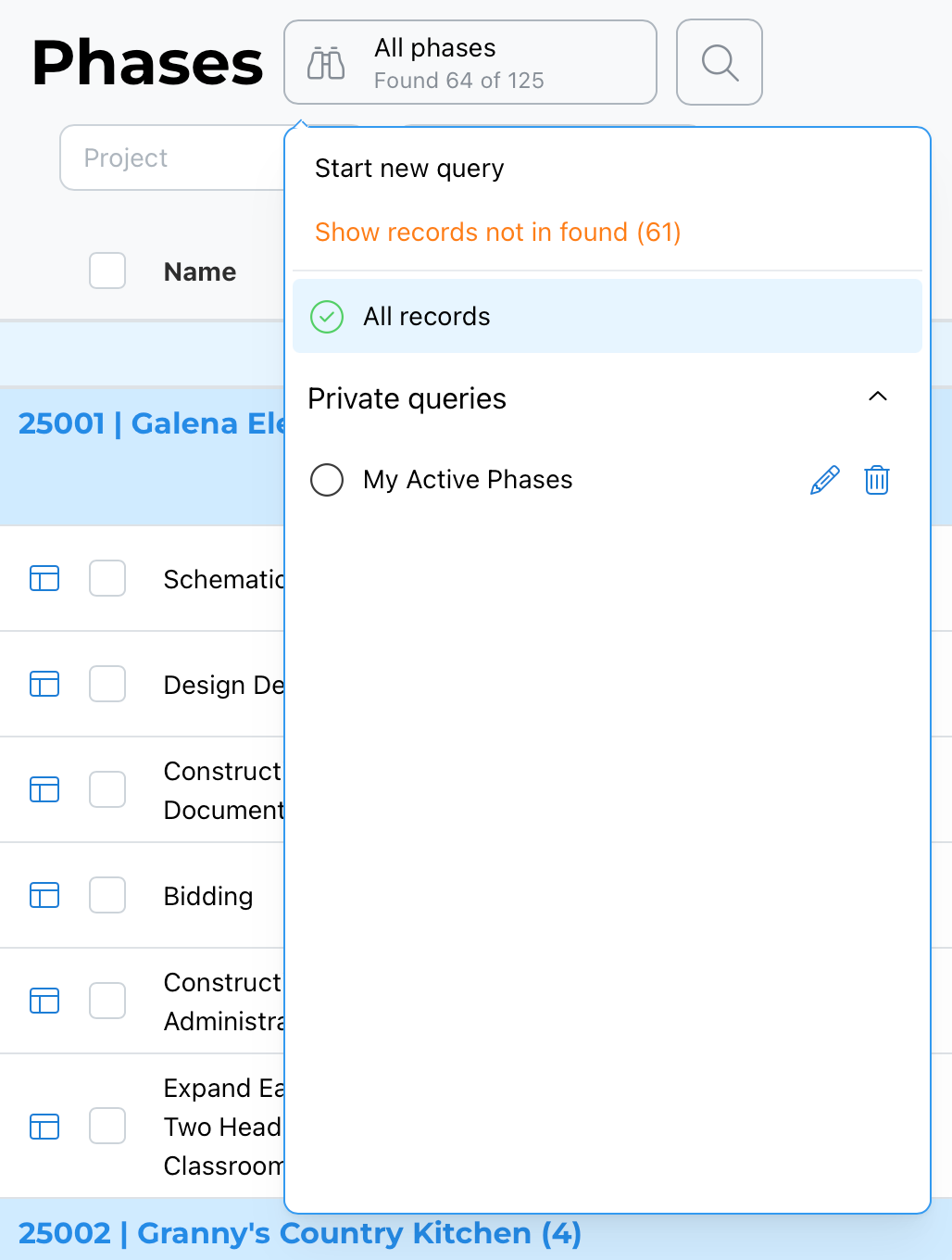
As with other modules, select the query icon (the binoculars) and choose Start New Query to build a phase query from scratch.
Project
Query by one or more projects using this multi-select field — useful when you want phases across a specific handful of projects rather than everything in your found set.
Name
A text field for the phase name. As with other text fields, a partial entry finds a pattern match — for example, entering "sch" would find every phase with a name containing that string, such as "Schematic Design," across whichever projects are included in your query.
Master Phase
Query by which master phase a phase was originally created from — useful for finding all phases tied to a specific master phase across multiple projects. See Setting Up Master Phases for more on how master phases work.
Status
A multi-select field for phase status — for example, narrowing results to only Active phases, or only Closed ones.
Billing Format
A multi-select field for the phase's billing format — Fixed Fee, Hourly, Hourly Not to Exceed, and so on.
Date Ranges
Phases have two separate date ranges you can query:
- Start Date — the phase's start date.
- Due Date — the phase's due date.
Each of these can be set using a specific start and end date, or by selecting one of the available dynamic named date ranges — the same date range behavior described in the Time Slips and Projects articles.
Extra Work
A field to query whether a phase is flagged as Extra Work — additional services beyond the base contract, as opposed to a standard phase.
Applying the Query
Once your criteria are set, select Apply.
Best Practice
If you're not seeing the phases you expect, remember that the phase list doesn't always guarantee it's scoped to your current project found set — build your query with explicit Project or other criteria if you need certainty about what's included. As with other modules, use dynamic named date ranges for anything you plan to save and reuse.
For more precise, multi-condition querying — combining All/Any/None logic or extending and constraining results — see Using the Advanced Query Editor.
Summary
Phase queries include Project (multi-select), Name (pattern match), Master Phase, Status (multi-select), Billing Format (multi-select), separate Start Date and Due Date ranges (fixed or dynamic), and an Extra Work flag. The phase list typically reflects your current project found set, but this isn't guaranteed. For more advanced logic, see the companion article on the Advanced Query Editor.