

Logo
    Welcome Aboard
  • System Admin and Settings
  • Projects and Proposals
  • Financial Transactions
BaseBuilders Knowledge Base

BaseBuilders Knowledge Base

BaseBuilders.comApp

Getting Started - an introduction to new users

Building and Using Queries

Queries let you decide exactly which records you’re viewing in any module. You can think of queries as saved searches that pull the right data from the database—whether you’re working with companies, contacts, projects, time, invoices, or more. This article explains how queries work, how to build them, and how to save and reuse them.

Overview

Queries control what records appear in list views. Once records are filtered using a query, you can:

  • Review data on the screen

  • Sort and summarize it

  • Run reports using those records

Queries are the foundation for reporting and analysis throughout the system.


Understanding Record Counts

At the top of a list view, you’ll see how many records are included from the total database count.
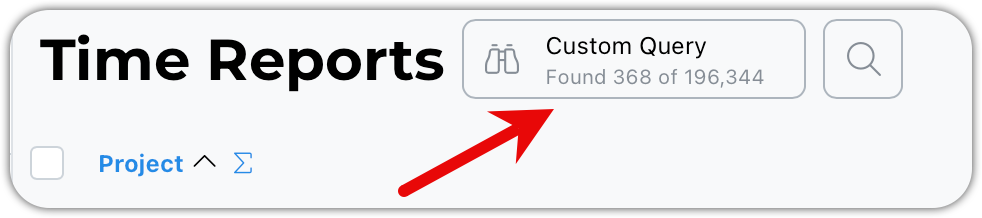
image.png

This tells you:

  • How many records match your query

  • How many total records exist

When you apply a query, this count updates automatically.


Using Predefined Queries

Some queries are predefined for you.
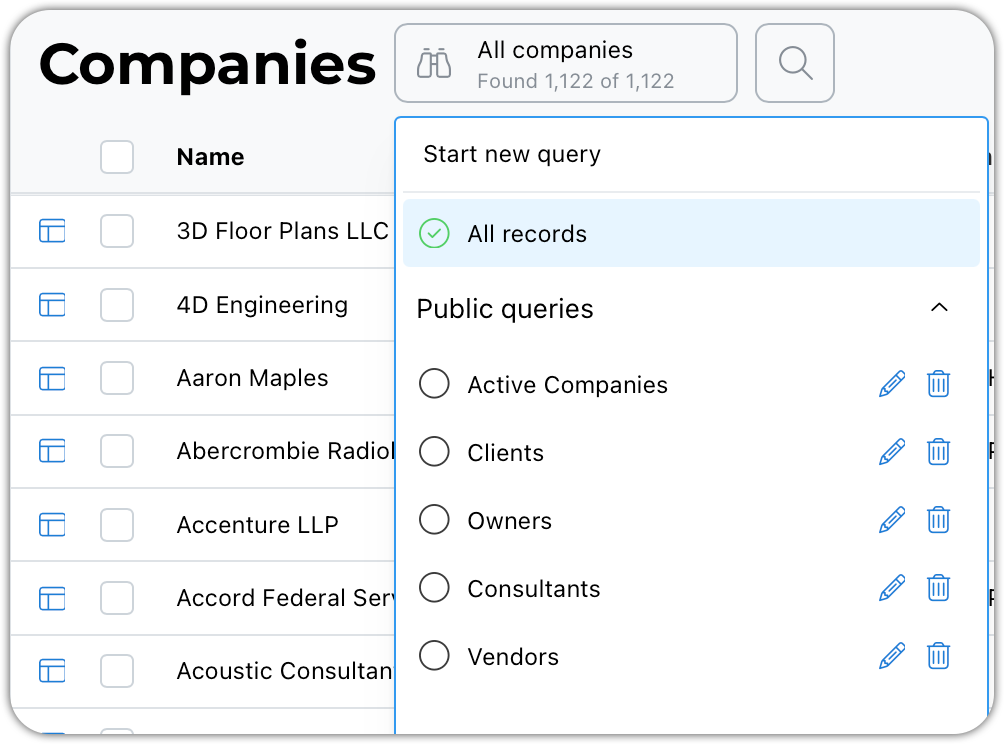
image.png

For example:

  • Selecting Clients will return all companies that have been used as a client on a project

These queries don’t modify your data—they simply retrieve matching records.


Saving a New Query or Editing an One

After running a query, be it a new custom query or a saved one, you can save it or create a new one.

The menu options will update depending on the current context.
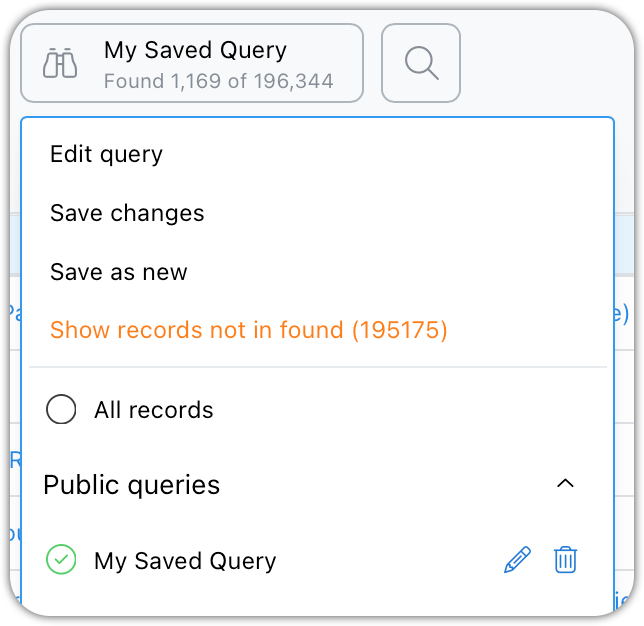
image.png

Using Date Ranges

Date ranges let you enter explicit dates or use dynamic date values such as Last Month or Last Week.

Entering only a start date will include all records from that date forward. Entering only an end date will include all records up to that date.
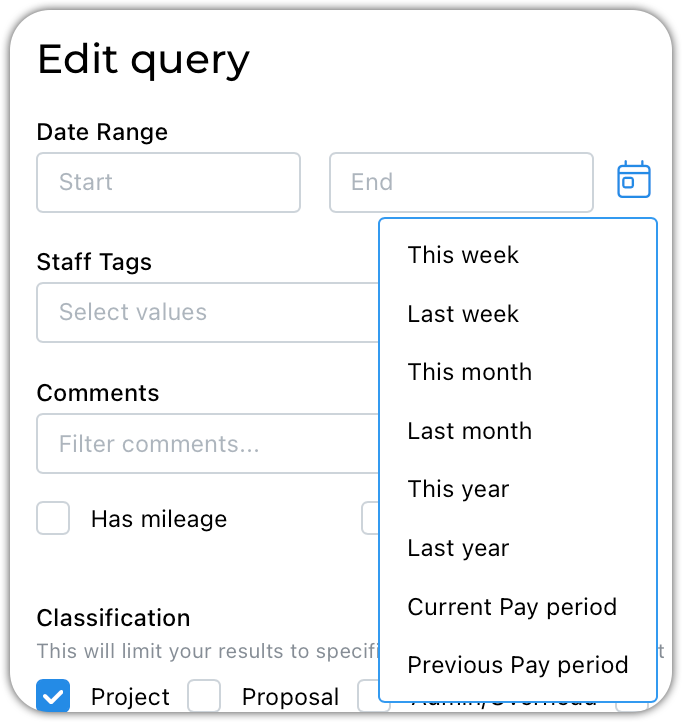
image.png

Benefits of dynamic date ranges:

  • No need to enter specific dates

  • Automatically adjusts based on today’s date

  • Works great for saved queries


What to Do After Running a Query

Once records are returned, you can:

  • Sort and summarize list views

  • Run Quick Reports

  • Generate Saved Reports

Queries determine what data is included in all of these actions.


Tips & Best Practices

  • Start simple—add criteria gradually

  • Use saved queries for recurring tasks

  • Use private queries for personal workflows

  • Delete queries tied to closed projects

  • Remember: queries find records, reports summarize them

Related Articles

Data Management - Column Sets

Decide what data you would like to see in reports and on your list views. Click your name/avatar at the bottom of the main navigation panel to open settings.

Creating and Using Saved Reports

Saved Reports allow you to build a report once and run it again and again with a single click. Unlike Quick Reports, Saved Reports store their own queries, column sets, and summaries—making them ideal for payroll, billing, and recurring internal reviews.This article explains how Saved Reports work and walks through creating, running, and editing them.

Quick Search

Need to find a record right now? Use our quick search feature.

Jumping to Related Records

You can navigate to related records quite easily. This is a feature that is unique and can be very powerful for users.

Running Quick Reports

Quick Reports let you turn any list view into a printable or downloadable report in just a few clicks. You can run them from time reports, projects, invoices, consultants, and many other areas of the system.This article explains how Quick Reports work and how to generate one using queries and column sets.

Was this page helpful?
Previous

Creating and Using Saved Reports

Next

© 2002-2026 | BaseBuilders, LLC. | All rights reserved.