

Overview
Quick Search lets you type a word or partial word and instantly search across records in the area you’re viewing. It’s ideal when you need to quickly locate a company, contact, project, time entry, or invoice without changing your workflow.
Where to Find Quick Search
Quick Search is available throughout the application.
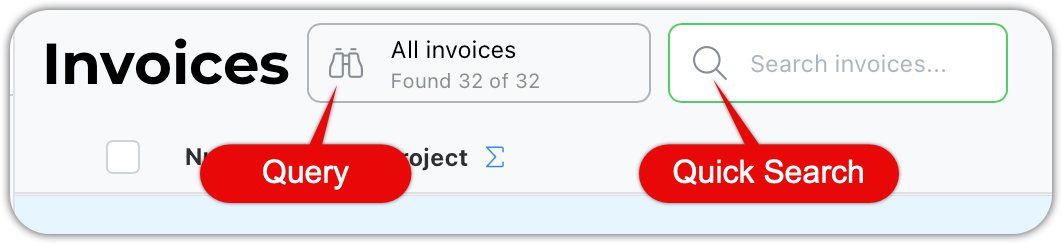
Navigate to a section such as Companies, Contacts, Time, or Invoices
Click the magnifying glass icon
Type your search text and press Go
How Quick Search Works
Quick Search looks for the text you enter anywhere it appears in the records for the section you’re currently viewing.
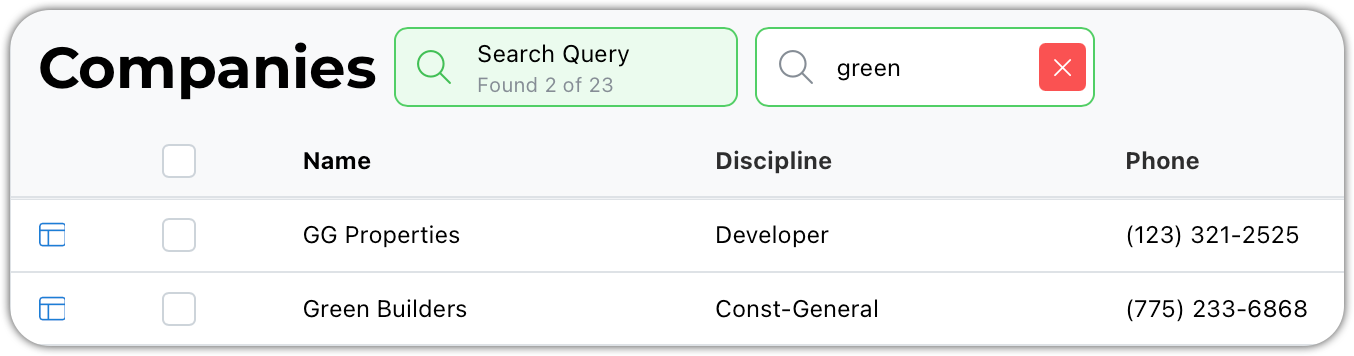
Searches are partial matches (you don’t need to type the full word)
Results may include matches from:
Names
Related companies
Project numbers
Invoice numbers
Associated records
You don’t have to be exact—Quick Search is designed to be forgiving.
Clearing a Quick Search
Once you’re done:
Click the red X
You’ll be returned to the exact view you were in before the search
When to Use Each
Use Quick Search when:
You need a fast lookup
You don’t want to change filters
You plan to return to your current view
Use Queries when:
You need repeatable filters
You’re reviewing data regularly
You want saved views
Tips & Best Practices
You don’t need full words—partial text works
Searches respect the section you’re in
Clearing Quick Search always returns you to your previous view
Quick Search is ideal for “find it now” moments
Final Notes
Quick Search is designed to be fast, flexible, and forgiving. If you know anything about what you’re looking for, Quick Search can usually get you there in just a few keystrokes.