

Billing settings control how taxes, payment terms, profitability views, and consultant pay requests behave throughout the system. These defaults are automatically copied into new projects when they are created. This article explains how to configure tax rates, invoice terms, billing defaults, and related maintenance tools.
Overview
From the Billing Settings area, you can:
Create tax rates
Define invoice payment terms
Set default billing behavior
Choose cash vs accrual profitability views
Control consultant pay request workflows
Sync updates across projects
Setting Up Tax Rates
If your jurisdiction requires sales tax, VAT, GST, or similar taxes, configure them here.
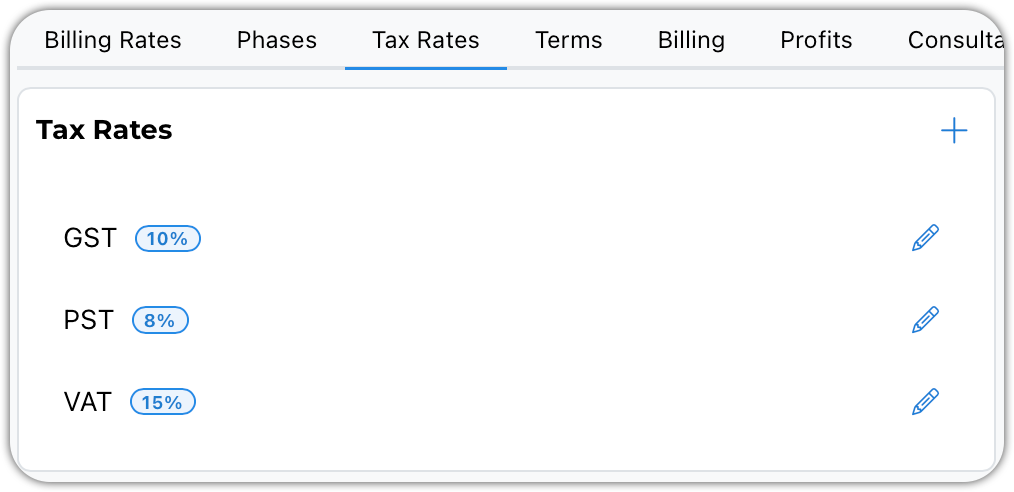
Adding a Tax Rate
Click the plus sign
Enter Tax Name and Percentage Rate
Click save
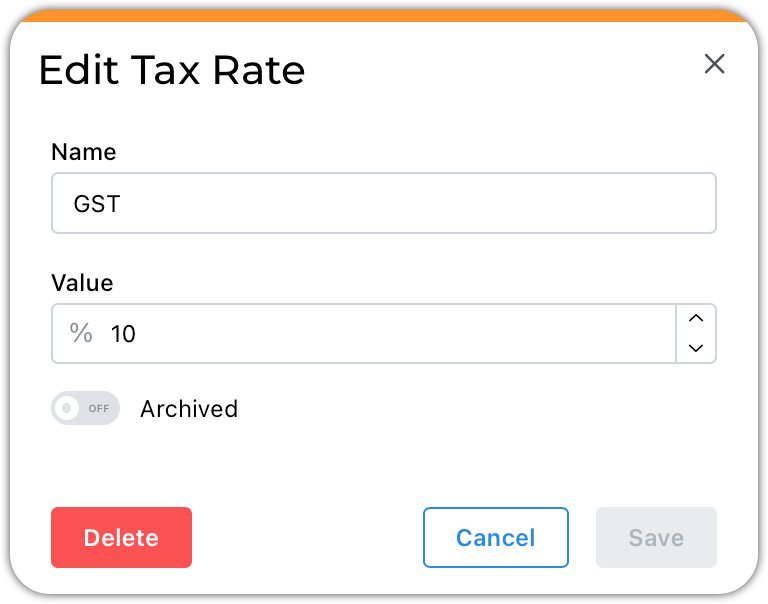
You can define precise rates (for example, 8.375%).
Notes
Create multiple tax types if needed
Add a 0% Exempt tax if applicable
Defining Invoice Terms
Invoice terms control due dates.
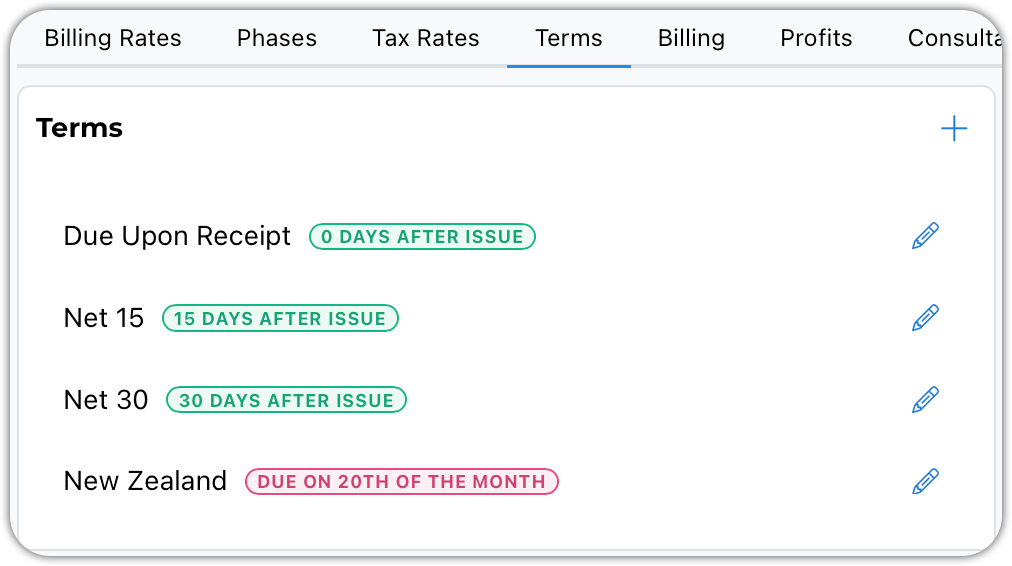
Common Examples
Due on Receipt
Net 15
Net 30
Conditional Due Dates (Advanced)
Some regions require special due date rules.
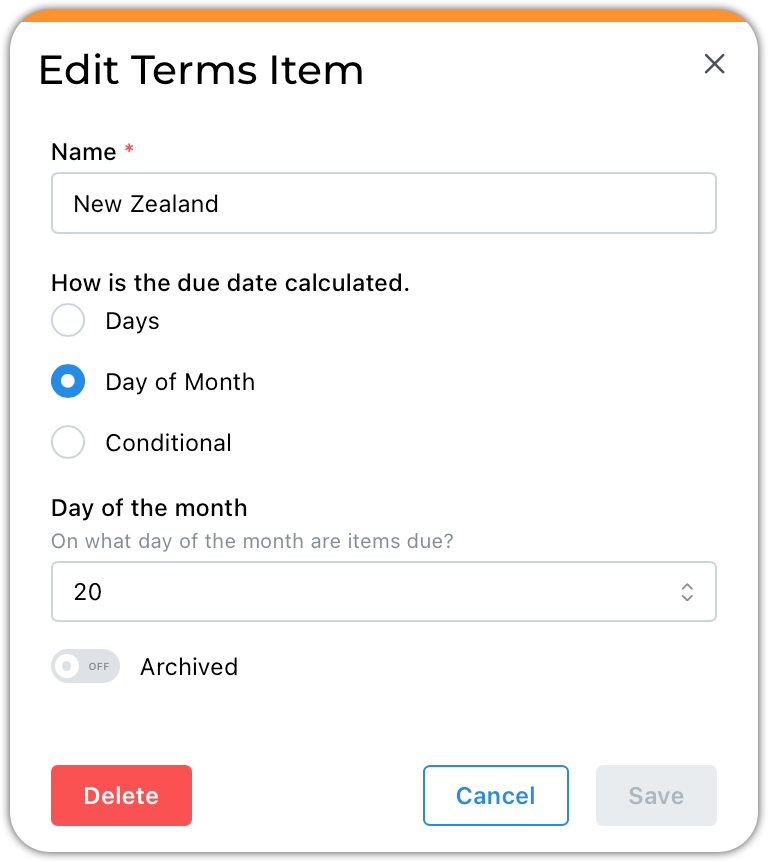
Example:
“Due on the 20th of the following month”
You can configure:
Fixed day-of-month due dates
Conditional rules
Custom descriptions
Applying Billing Defaults
Defaults determine what new projects inherit.
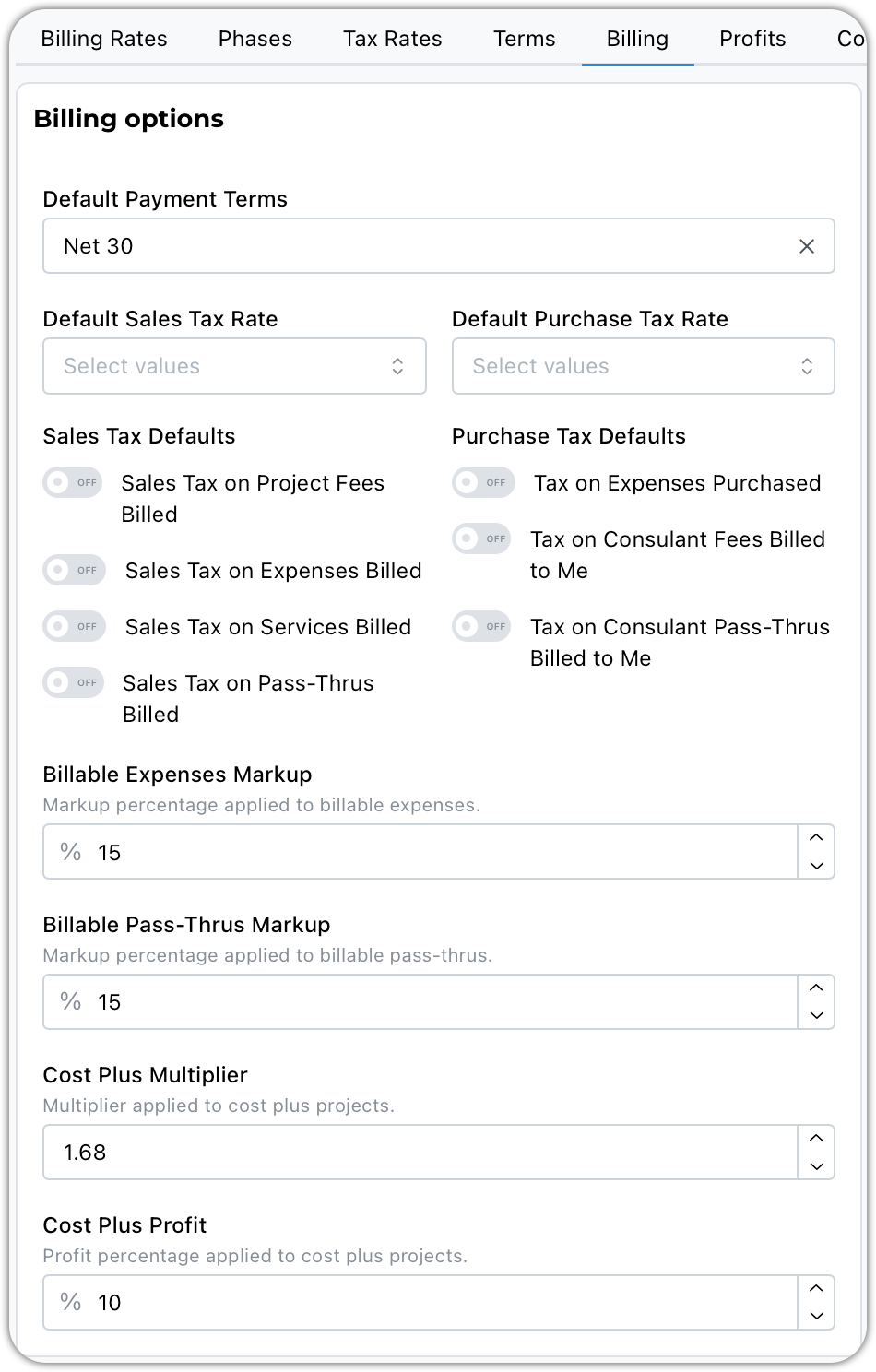
You can define:
Default invoice terms
Default sales tax
Default purchase tax
Which items are taxable
Default markup rules
Important Behavior
These settings:
✅ Apply to newly created projects
❌ Do not override existing projects
Projects can still be adjusted individually after creation.
Cash vs Accrual Profitability View
Choose how profitability is displayed.
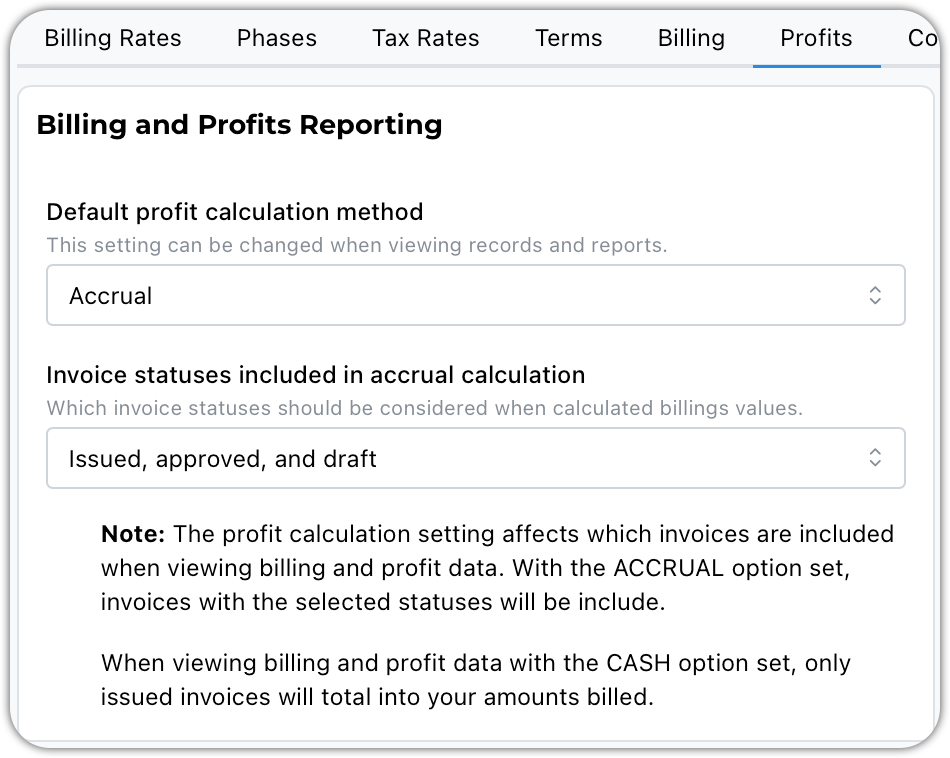
Accrual View
Based on invoiced statuses
Will include outstanding invoices
Cash View
Based on the received payments
Reflects actual cash collected
This is a reporting preference, not accounting logic.
Invoice Status Rules (Accrual Settings)
Control which invoice statuses affect accrual calculations.
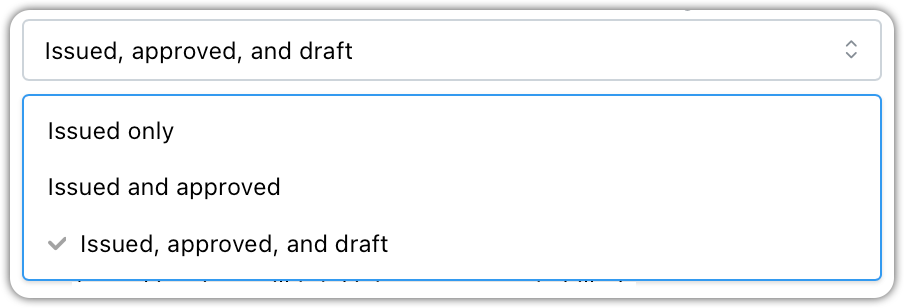
Invoices progress through:
Draft
Approved
Issued
You can choose whether the accrual includes:
Issued only
Approved + Issued
Draft + Approved + Issued
Why This Matters
This affects:
Amount billed
Remaining to bill
Profitability reporting
Consultant Pay Request Defaults
Control the default status of new pay requests
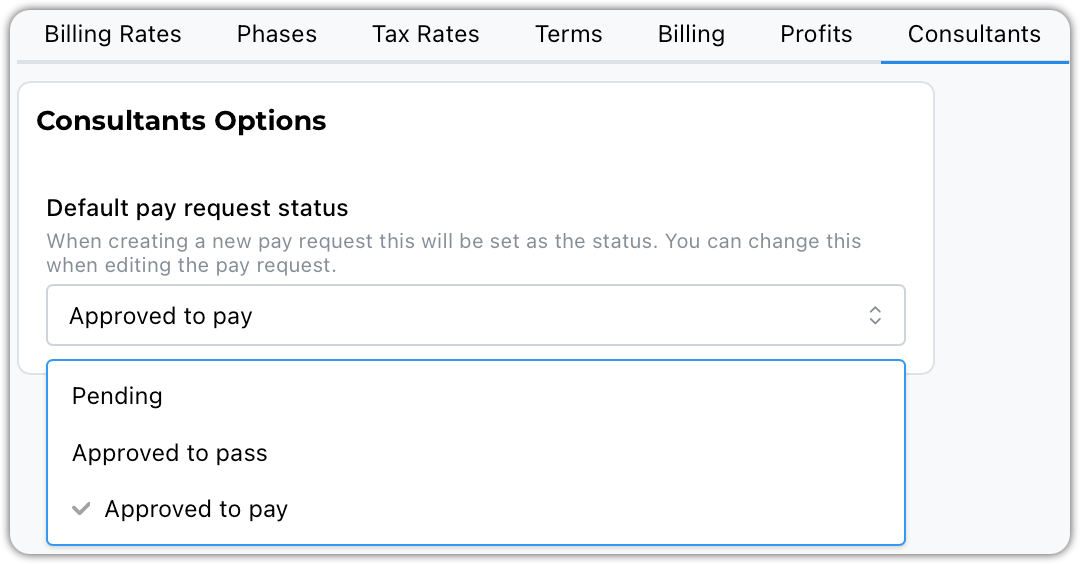
Options include:
Pending – Requires approval workflow
Approved to Pay – Ready for payment
Approved to Pass Through – Eligible for invoicing
Approval Logic
Approved to Pay → Also approved to pass through (if marked)
Approved to Pass Through → Not automatically approved to pay
Approvals are required before:
Paying consultants
Invoicing pass-through expenses
Maintenance & Sync Tools
If billing rules change, you can update projects in bulk.
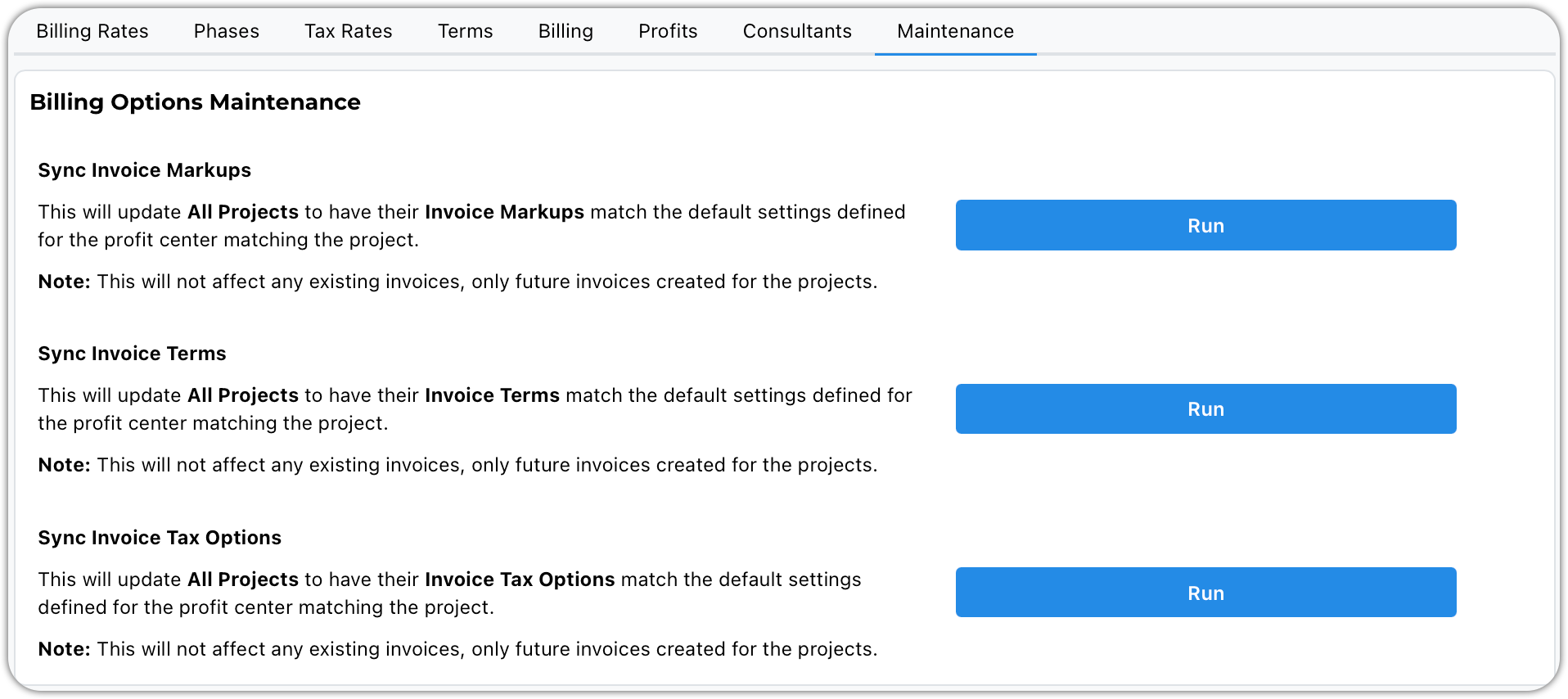
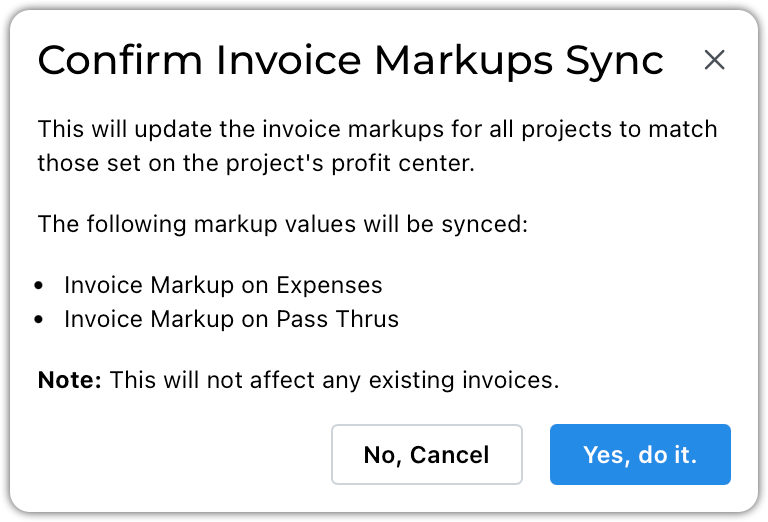
Available sync options:
Sync Invoice Markups
Sync Invoice Terms
Sync Tax Options
What Syncing Does
Updates project defaults
Does not modify existing invoices
Affects future invoices only
Alternative Option
You may also:
Select specific projects
Run a Batch Update
Tips & Best Practices
Configure taxes before issuing invoices
Keep terms consistent unless contracts require otherwise
Use Pending consultant requests for tighter controls
Sync defaults when tax rates or markups change
Remember: Defaults affect new projects, not existing ones