

This includes:
Your personal avatar
Company logo and icon
Primary interface color
Profit center logo for printed documents
Video
Overview
Personalization settings allow you to:
Add your profile image (avatar)
Brand the application with your company logo
Adjust interface colors
Control which logo appears on invoices and printed documents
These settings help create a familiar, branded experience for your team and clients.
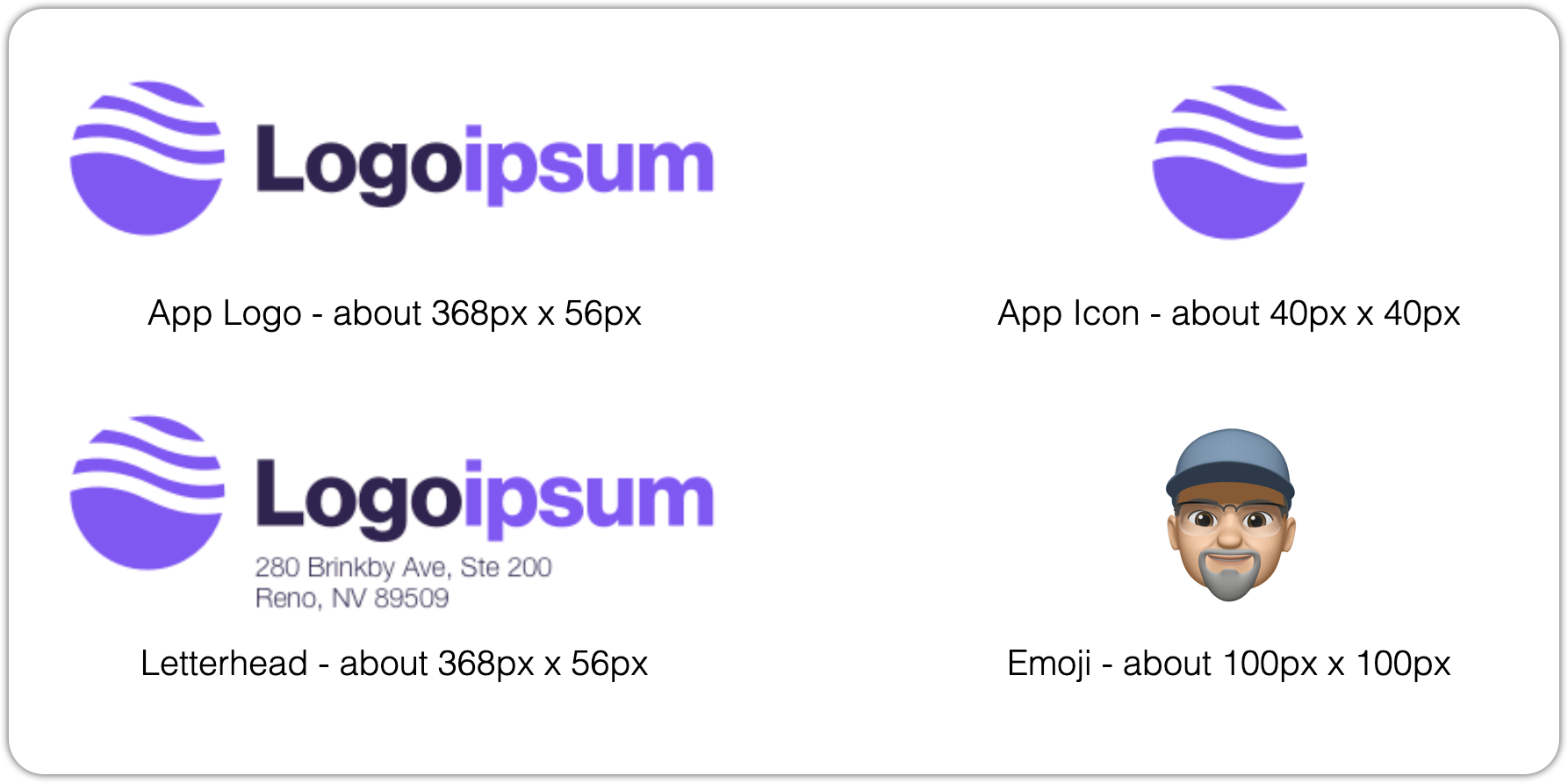
Updating Your Personal Avatar
Your avatar appears throughout the system.
Navigate to Personal Settings under Settings.
Drag and drop your image into the target area, or click it to navigate to your image file.
Click save at the bottom of the window.
After saving, allow a moment for the image to refresh. Your avatar will now appear anywhere your user profile is shown.
Updating Application Logo & Icon
You can brand the application using your company logo.
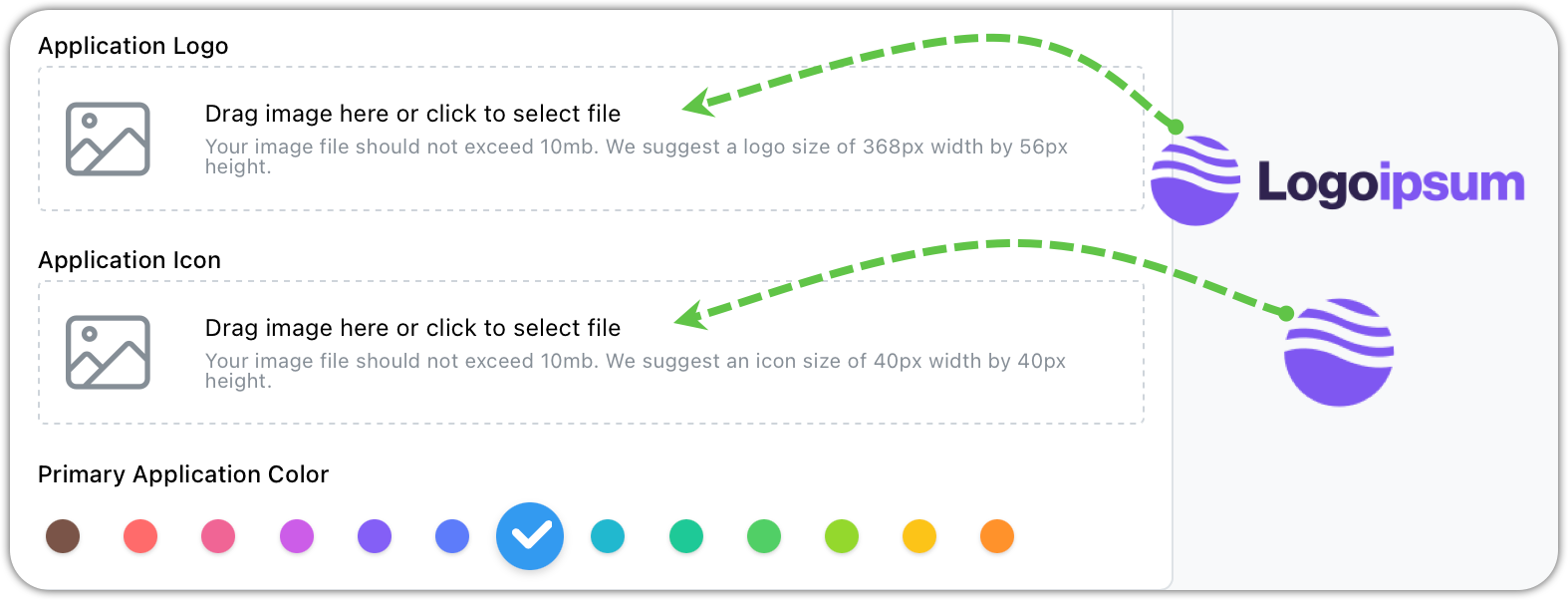
Navigate to General | Application Look & Feel under Settings.
Drag your application logo into the indicated location, or click the area to open a file selector and select your image file.
Drag your application icon to the indicated location, or click in the area to open a file selector and select your image file.
Click save at the bottom of the window.
Note: if an image already exists that you want to replace, click clear to remove it.
When the navigation menu is collapsed, only the icon version will display.
Updating Profit Center Logo (For Printed Documents)
Profit center logos are used on:
Invoices
Printed documents
Logbook records
and more
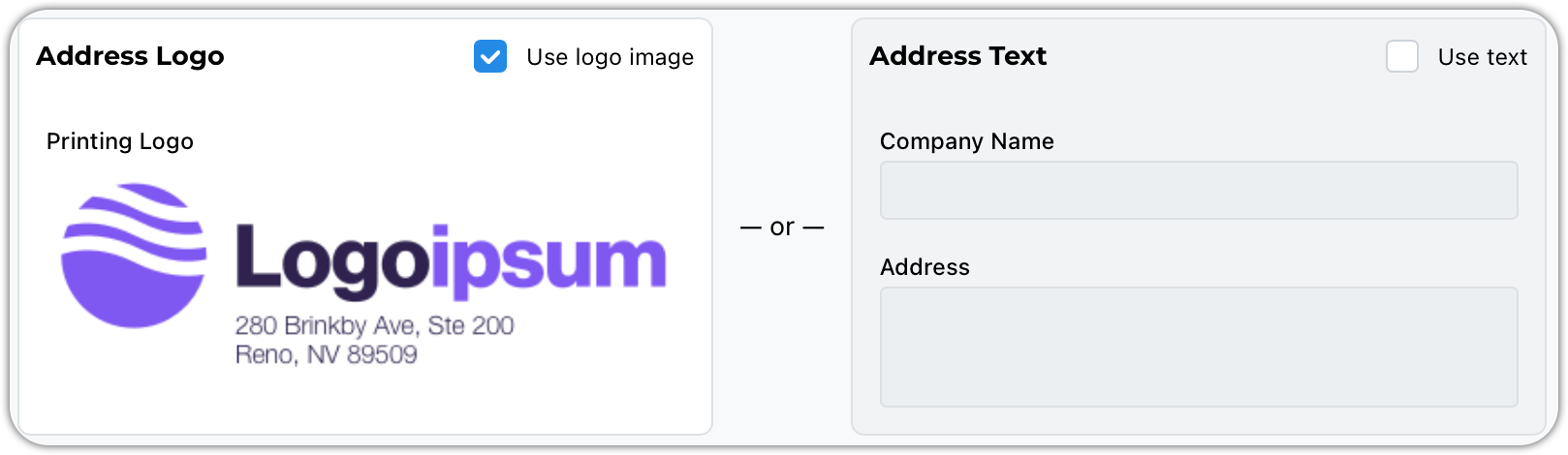
You can use the check box to enter your company name and address if your don't want to upload a letterhead logo. But who would want that?
Follow the same steps outlined above for your application logo and icon.
This logo will appear on all documents generated for that profit center.
What Changes After Branding
Once saved:
Logos update across the application
Colors refresh automatically
Printed documents use the selected profit center logo
You may need to briefly refresh your screen in some areas.
Tips & Best Practices
Use high-resolution logo files (PNG or SVG preferred)
Provide both full logo and icon versions
Choose a primary color with strong contrast for readability
Keep branding consistent across profit centers if possible